
This page explains how IPTV support works at Northline IPTV: how to reach us, which channel suits which question, what we can help with at each stage of your plan, what sits outside our reach, and how to write a message that gets a full answer the first time. We keep the rules short so you know where you stand before you write. What this means for you: one well-prepared message usually settles the question, and you never have to guess whether you are allowed to ask.
Looking for an address right now? Our contact page lists the e-mail address, the WhatsApp number and a form. If something has just stopped working, our help centre sorts the common problems by symptom, so you can often fix them before you write.
How IPTV support works at Northline
Support is part of what you buy, not an extra. Every pack, every duration and every customer gets the same help, through the same two channels, from the same team. Here is the frame in four points.
7 days a week
We answer every day of the week, weekends included.
Two channels
E-mail and WhatsApp, at +33 6 44 65 43 13. Both reach the same people.
Two languages
English and French. We reply in the language you write in.
One thread
No ticket number and no phone menu. You write, we reply in the same conversation.
The person who replies can find your order as soon as you give the e-mail address you used to buy. From there, we can see your pack, your duration and whether your access is active. We cannot see what you watch, and we do not need to.
Our replies are written for your case. We answer the question you asked, in the order you asked it. When a problem has a known fix, we send the steps in sequence so you can follow them at your own pace, in front of the screen. When something is outside what we can do, we say so in the first reply rather than after several messages, and we tell you who can help instead.
If a problem needs several rounds, we stay in that thread until it is settled. You do not need to explain the situation again each time, and the history of what was tried stays in one place. That matters more than it sounds: half the work in any fix is knowing what has already been ruled out.
What this means for you: you do not need to prepare a perfect message, choose the right department or wait for an opening time. Write when it suits you, on the channel that suits you, and the conversation continues from there.
Support pages in this section
Two pages sit under this one. Each covers a single need, so this overview can stay focused on how support itself works.
A suggested route: if you are about to write, open the contact page. If you want to know who you are dealing with before you order, read the about page. If something has stopped working, try the help centre first, because many fixes take only a few minutes and you may not need to write at all.
E-mail or WhatsApp: choosing a channel
Both channels reach the same team and get the same care. The difference is in how you work, not in what we can do. Choose the one that matches the moment.
| Situation | ||
|---|---|---|
| A long question before ordering | Well suited | Works, but long replies are harder to read on a phone |
| You are in front of the TV and want to go step by step | Works, slower back and forth | Well suited |
| Sending a photo of an error screen | Yes | Yes |
| Keeping a written record of an answer | Yes, in your mailbox | Yes, in the chat history |
| Asking us to resend your access details | Best from the address you ordered with | Works if you give the order e-mail |
| Writing in English or French | Yes | Yes |
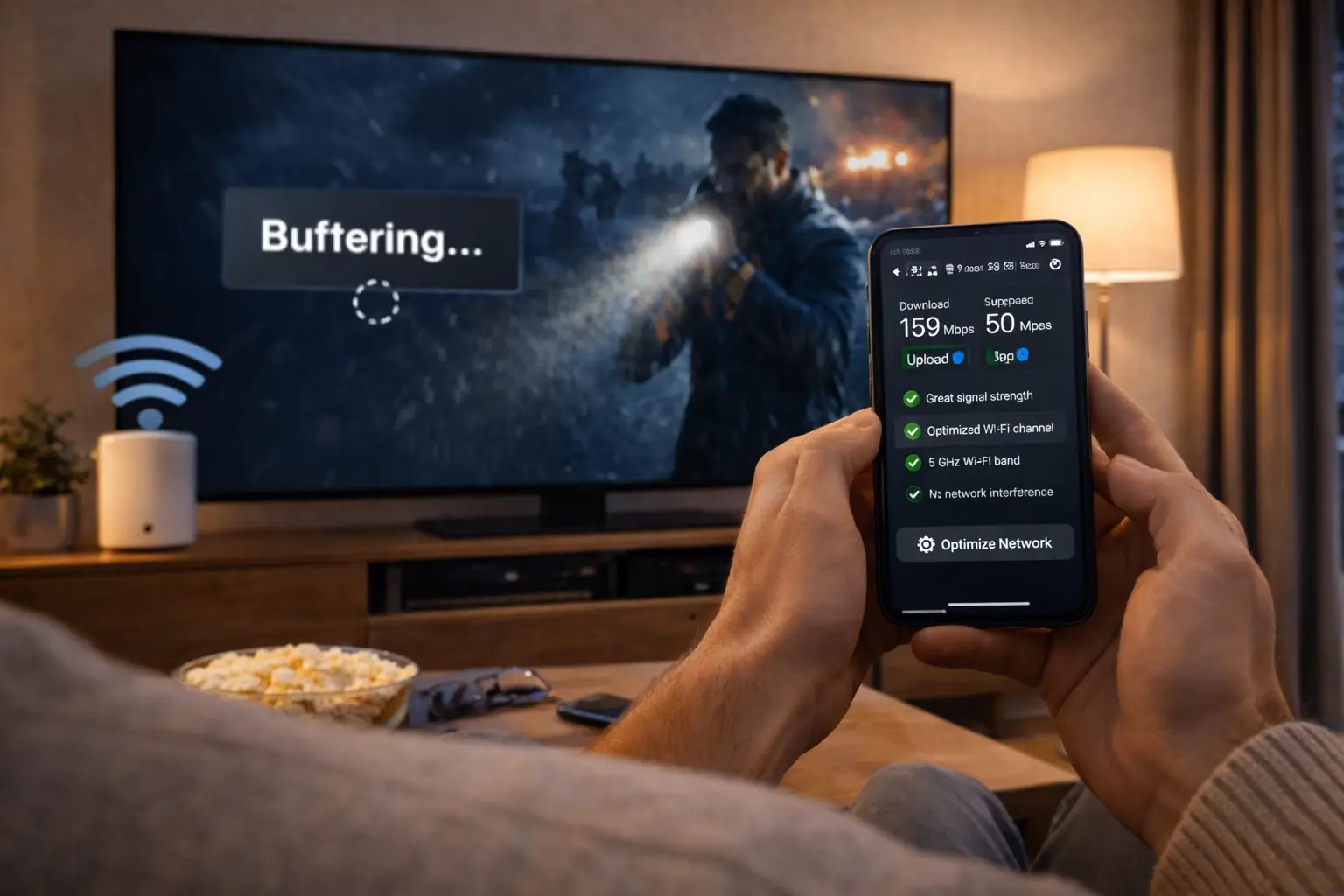
A simple rule of thumb
- At a desk, with a question to think through: e-mail.
- On the sofa, remote in hand: WhatsApp.
- Asking for your login to be resent: e-mail from your order address.
- Not sure: either one. We will take it from there.
Our WhatsApp number is written in an international format. It works from a Canadian phone like any other WhatsApp chat, with nothing special to set up. Save it in your contacts under “Northline support” so you can find it on the evening you need it.
Please pick one channel per question. If you send the same message by e-mail and on WhatsApp, two people may start on it at once, and you end up with two threads to follow. If you need to switch channel, say so in your message and mention the earlier one.
What our IPTV support can help with
Most questions fall into a handful of families. This table shows what we do for each one, so you know what to expect before you write.
| Topic | What we do | What helps us answer |
|---|---|---|
| Choosing a pack | Explain the differences between packs and durations, and point you to current prices on the plans page | Your screens, your device and what you watch most |
| A specific language | Tell you what we can and cannot confirm before you order | The language and the kind of content you want |
| Access details | Resend your Xtream Codes details or your M3U link | The e-mail address you ordered with |
| Setup | Guide you through your player on your device, step by step | Device model and player name |
| Playback problems | Help with buffering, login errors and black screens, and check a channel that fails | The exact message or a photo, and what you tried |
| Programme guide | Help with an empty guide or wrong times | Your province or time zone and your player |
| More screens | Explain the conditions and price for extra simultaneous connections | How many screens you need at the same moment |
| End of a plan | Confirm your end date and explain how to order again or change pack | Your current pack and the one you are considering |
Each pack includes 1 simultaneous connection. If your home needs more screens at the same time, ask us. We explain the conditions and the price for your case, in writing, so you can decide calmly.
The packs themselves are simple to compare. The Premium Pack includes 20,000+ channels, 24,000+ series and 100,000+ movies. The VIP Premium Pack includes 27,000+ channels, 61,000+ series and 155,000+ movies. The Ultimate 4K Pack includes 57,000+ 4K channels, 47,000+ series and 179,000+ movies, delivered from 20 servers in Europe. The catalogue includes French-language and international content; for any specific language, ask support before ordering.
Support at each stage of your plan
The questions change as your plan moves along. Here is what support typically does at each stage, from the first look at our site to the day your access ends.
- Before ordering
Answer the deciding questions
Devices, players, languages, speed, the connection rule. You get a written answer before you spend anything.
- At checkout
Clear up payment
Card or PayPal, one payment in Canadian dollars. If something blocks the checkout, we tell you what to check.
- Within minutes
Make sure access arrives
If the access e-mail is not in your inbox or spam, we resend it to the address you ordered with.
- First evening
Guide the first login
We take you through your player on your device, one screen at a time, until a channel plays.
- During the plan
Help when something changes
A new TV, a new router, a move, a guide showing the wrong times. We help you adjust.
- End of the plan
Confirm what happens next
Access stops and nothing is charged. If you want to continue, we explain your options.
The busiest moment for most households is the first evening. That is when the player, the device and the line meet the login for the first time. If you can, order at a time when you have half an hour to spare in front of the TV, with the welcome e-mail open on your phone. Our guide to how activation works sets out that evening in detail.
The quietest stage is the middle of the plan. Once the setup works, most homes do not need us for weeks at a time. When they do write, it is usually because something in the home changed: a new device, a new internet line or a new room. Mention that change in your first line; it is often the whole answer.
Writing a message that gets a complete answer
The quality of the first message decides how many messages follow. A vague one needs a round of questions before anyone can help. A precise one can be answered in a single reply. These five steps make the difference.
- Use your order e-mail. Write from the address you used to buy, or include it in your message. We can then find your access straight away.
- Name your device and your player. For example, a Samsung smart TV with IPTV Smarters Pro, or a Fire TV Stick with TiviMate. The model matters more than the brand.
- Describe what you see. Copy the exact error message, word for word, or send a photo of the screen. “It does not work” could mean ten different things.
- Say what you already tried. A restart, a cable, another channel, another device. It saves us from suggesting something you have done.
- Stay in the same thread. Reply to our message instead of starting a new one, so the history stays together.
An example of a first message we can usually answer in one reply. Never include your password.
One more detail helps more than people expect: when the problem started, and what changed around then. “Since this morning, after the TV updated” points straight to the cause. “For a while now” points nowhere. If you do not know, say so; a guess is less useful than an honest “not sure”.
Photos are welcome. A picture of the error screen, taken with your phone, often tells us more than a description. Just make sure the password box is not visible, and crop out anything personal before you send it.
Examples by topic
Different questions need different details. Here is what to put in the first message for the topics we see most, and what we usually do next.
Tell us the screen you watch on most, whether it is 4K, and whether you watch more live TV, series or films.
Then: we suggest a pack and explain whyGive the address you ordered with and check spam first.
Then: we resend your details to that addressCopy the exact error and name the player and device.
Then: we check your account and the details on our sideSay which quality you watch in and give a speed test taken at the screen in the evening.
Then: we compare it with what the screen needsTell us your province and your player.
Then: we explain the time zone and time shift settingsSay how many screens must play at the same moment.
Then: we give the conditions and the price for your caseFor speed, use the figures per screen: 10 Mbps for HD, 15 Mbps for Full HD and 25 Mbps for 4K. If support sets up extra simultaneous screens for your home, add the figures together and leave room for everyone else using the same line.
For login problems, our page on the Xtream Codes setup explains the three fields and the usual typing errors. Reading it first often means your message to us can be one line: “I checked all three fields, and this is the error.”
Have a question before ordering
Ask about your device, your player, a language or the connection rule. You get a written answer before you pay anything.
What to check before you write
You never need to finish every check before writing to us. But a few quick ones solve a large share of problems on their own, and the rest give us useful information if you do write.
- Restart the device fully, not just the player: unplug it for a moment if it has no restart option.
- Restart the router, then wait until the internet light is steady before testing.
- Close the player on every other screen in the home, then try again on one.
- Check the end date of your plan: nothing renews by itself.
- Try a second channel, so we know whether the problem is one channel or all of them.
- Note the exact error message, or take a photo of it.
Our help centre has a guide for each of the three symptoms people write about most. If the picture pauses, read the buffering guide. If the player will not log in, read IPTV can’t connect. If you have sound with no picture, or nothing at all, read the black screen guide.
One check people often skip is the second channel. If one channel fails and the others play, the cause is that channel, and we can look at it on our side. If every channel fails, the cause is more likely the login, the line, the end date or another screen in use. That single test cuts the list of possible causes in half before anyone has typed a word.
Another is the time of day. A picture that pauses only in the evening points to a busy line at home or in the building, not to a broken login. If you can, note whether the problem appears at a particular time. It costs nothing and it often tells us more than a long description.
What this means for you: a few minutes of checks either fixes the problem or turns your message into one we can answer in a single reply. Both outcomes save you time.
What IPTV support cannot do
We prefer to be clear about our limits. A support team that seems to promise everything usually delivers less than one that says where it stops. Here is where we stop, and why.
What we can do
- Check that your access is active and when it ends
- Resend your login or your playlist link
- Guide you through a supported player on a supported device
- Help you test your line against the speed each screen needs
- Check a channel that fails for you
- Explain the conditions and price for more screens
What we cannot do
- Reach into your router, Wi-Fi or television
- Repair a device or replace a remote
- Sell or activate a player licence
- Confirm a specific language we have not checked
- Move your login to another household
- Take payment by message
We do not control your internet line or your Wi-Fi. We can tell you what speed each screen needs, and we can help you test it, but the line itself depends on your home setup and your internet provider. When a problem clearly sits there, we say so and suggest what to ask them.
We are also independent from the companies that publish player apps. We help you set them up with your details, but we cannot sell or activate their licences. If a player asks for a licence, check the current price on the app’s official website. Our guide to IPTV apps explains which player runs on which device.
What this means for you: when we say “this is outside what we can fix”, it is not a brush-off. It is the fastest route to the person who can fix it.
Requests that need an answer from us first
Some requests are not problems to fix but decisions to make together. These always go through support, because the answer depends on your case.
More screens at the same moment
Each pack includes 1 simultaneous connection. The same login can sit on several devices in your home and play on one at a time. If two or more screens need to play together, write to support with the number of screens. We give you the conditions and the price for your case in writing. There is no menu option for this on the site, on purpose: we would rather understand your home first.
A specific language. The catalogue includes French-language and international content. If you need anything more specific, ask before ordering. We tell you what we can confirm and what we cannot, rather than letting you assume.
Changing pack. If your needs change during a plan, for instance you buy a 4K television and want the Ultimate 4K Pack, write with your current pack and the one you want. We explain the options for your order.
Choosing a duration. Every pack comes in 1, 3, 6 or 12 months. If you are new to IPTV, a short duration lets you test your devices, your line and your habits before committing to longer. If you already know the setup works at home, a longer duration means fewer decisions during the year. We can talk it through with you, but the choice is always yours, and we never print amounts in a reply that could go out of date: the current prices are on the plans page.
A new order at the end of a plan. Nothing renews automatically. When your plan ends, access stops and nothing is charged. If you want to continue, you choose a pack and a duration again. See current prices on the plans page, and ask us if you are unsure which duration fits.
Your privacy and safety when you contact us
Support works with your order details, so it is worth knowing exactly what we ask for and what we never ask for. If anyone claiming to be us asks for more, it is not us.
What we may ask for
- The e-mail address you ordered with.
- Your device model and your player.
- The exact error message or a photo of it.
- When the problem started.
- A speed test taken at the screen.
We never ask for your card details or your password by message. Payment happens only at checkout, by card or PayPal, in Canadian dollars. If someone asks for payment details or your login in our name by message, do not answer, and tell us on one of our two channels.
Your login is for your household. We will not resend it to a different e-mail address because someone asks in a chat. If you have changed e-mail address since ordering, tell us from the original address if you still can, or explain the situation and we will find a safe way to confirm it is you.
Our payment guide covers the safe habits at checkout in more detail, and our commitments page lists every rule we apply to orders.
How a support conversation runs
Most exchanges follow the same shape, whatever the topic. Knowing it helps you see where you are and what comes next.
The second step is the one people do not see. Before suggesting anything, we look at your access: is it active, has it reached its end date, is a stream already running on it. That check rules out the causes on our side first, so the steps we send are aimed at what is left.
The fourth step is where most conversations are won or lost. When you try a step, tell us the result, even if it is “no change”. “No change” is real information: it rules something out. Silence, on the other hand, leaves the thread hanging and the next person has to start again.
If the fix belongs to someone else, such as your internet provider or a player publisher, the last step is not “settled” but “named”: we tell you who to contact and what to ask them. You leave the conversation knowing where to go next, which is the point.
Support for each kind of device
Every device has its own menus, its own store and its own habits. The details we need to help you depend on which one you use. This table tells you what to mention in your first message, and which guide to read while you wait.
| Device | What to mention | Guide to read first |
|---|---|---|
| Samsung or LG smart TV | The TV model and the player installed from the TV’s store | IPTV on smart TVs |
| Fire TV Stick | The stick generation if you know it, and the player | IPTV on Firestick |
| Android TV or Google TV box | The box model and whether it uses Wi-Fi or a cable | IPTV on Android TV box |
| Apple TV, iPhone or iPad | The device and the player from the App Store | IPTV on Apple TV |
| Android phone or tablet | Whether it is on Wi-Fi or mobile data | IPTV Smarters Pro |
| PC | The player you use and the browser or app it runs in | How to set up IPTV |
The model name usually sits on a label at the back of the TV or under the box, or in the device’s settings under “about”. If you cannot find it, a photo of the label works just as well. The more precisely we know the device, the more precisely we can describe the menu you are looking at.
If you use several devices in the home, tell us which one has the problem and whether the others work. “Works on the phone, not on the TV” is a very different message from “nothing works anywhere”. The first points at one device or one player; the second points at the login, the line or the end date of your plan.
What this means for you: one line about your device saves a whole round of questions. It is the single most useful thing to include after your order e-mail.
When something in your home changes
Most messages in the middle of a plan follow a change at home. The service has not moved; the setup around it has. Here are the changes we hear about most, and what to tell us when they happen.
A new television
Install a supported player from the new TV’s store and enter the same login. Tell us the model if the player is missing.
A new router
Reconnect each device to the new network. If the picture pauses afterwards, send a speed test taken at the screen.
A move
Your login moves with you. If you change province, check the time zone so the guide shows the right times.
A new phone
Install the player again from the official store and add the login. Remove it from the old phone before you pass it on.
A device update
Updates sometimes reset settings. If the player behaves differently after one, say so in your first line.
More people watching
If two screens now need to play together, ask about the conditions and price for more connections.
The common thread is simple: tell us what changed, even if it seems unrelated. A new router explains buffering. A device update explains a player that suddenly opens on a blank screen. A move explains a guide that is an hour off. Without that line, we have to work backwards to find it.
A move deserves a word of its own, because it touches three things at once. The internet line is new, so the speed at each screen may be different. The rooms are new, so the distance between router and TV may have grown. And, if you crossed a provincial border, the time zone may have changed. Run a speed test at the screen in the evening, set the device time zone to automatic, and then tell us what you see if anything still feels wrong.
What this means for you: changes at home are normal, and none of them requires a new order. Your login works on any supported device in your household, one screen at a time, for the whole duration you bought.
Helping someone else in your household
Often the person who orders is not the person who watches most. A parent sets up the TV for a teenager, or an adult child handles the order for a parent who lives with them. Support works the same way in these cases, with two practical points.
- Write from the order e-mail, or include it, even if you are asking for someone else in the home.
- Describe the screen the other person sees, or ask them for a photo of it.
- Do the first setup together if you can, so the other person sees where the settings are.
- Note the end date where both of you can find it, so nobody is surprised when access stops.
Your login is for your household. Helping someone under your own roof is exactly what it is meant for. Helping someone in another home by giving them your login is not: it breaks the one-household rule and, with 1 simultaneous connection per pack, it interrupts your own viewing whenever they watch.
If a relative in another home wants the service, they can order their own pack and write to us directly. We are happy to answer their questions in English or French before they buy, and to guide them through the first evening on their own devices.
Deep dive: setting up a TV for someone who is not comfortable with remotes
Set the player to open on the live TV section rather than on a menu, if it offers that option. Add a handful of favourites so the person does not need to scroll a long list. Show them one way back to the start, usually the home or back button, and nothing else. Write the steps on a card next to the TV. If something changes later, they can send us a photo of the screen from their phone, and we explain what to press in plain words.
IPTV support in English and French
We answer in English and in French, 7 days a week. You do not need to choose a language in advance or ask for a particular person. Write in the language you prefer, and the reply comes back in the same language.
Write the way you speak. We reply in your language, in plain words, with the steps in order.
If you switch language halfway through a conversation, that is not a problem either. Some households write in French and have a teenager follow up in English, or the reverse. The thread continues as one conversation.
Language of support and language of content are two separate questions. Support speaks English and French. The catalogue includes French-language and international content. If you want to know whether a specific language is available in the catalogue, ask before ordering and we tell you what we can confirm.
Canada also spans several time zones, which affects one practical thing: the programme guide. If you write about guide times, mention your province so we can tell you the right time zone setting. Our TV guide setup page explains the settings involved.
IPTV support words, explained
These terms come up in our replies. Knowing them makes our messages quicker to follow.
- Order e-mail
- The address you used to buy. It is how we find your access.
- Access e-mail
- The message with your login, sent within minutes of your order.
- Xtream Codes
- A login made of a server URL, a username and a password.
- M3U link
- A single playlist address that some players need instead.
- Player
- The app you watch in, made by an independent publisher.
- Simultaneous connection
- One stream playing at a moment. Each pack includes one.
- End date
- The day your plan stops. Nothing renews after it.
- Thread
- One conversation, kept together from first message to answer.
If one of our replies uses a word you do not know, say so. We would rather explain than leave you guessing at a step.
Related pages across the site
These pages answer the questions that most often come before or after a message to support.
Ready to choose a pack
Packs run for 1, 3, 6 or 12 months, with one payment, no contract and no automatic renewal.
FAQ
When does support answer?
Every day of the week, by e-mail and WhatsApp. We reply in English or French, depending on the language you write in.
Can I ask questions before I buy?
Yes. Ask about devices, players, packs or content in a specific language before ordering. That way you know what to expect.
Should I use e-mail or WhatsApp?
Either one reaches the same team. E-mail suits longer questions; WhatsApp suits step-by-step help in front of the TV. Please use one channel per question.
I lost my login details. Can you send them again?
Yes. Write from the e-mail address you used to order, and we resend your server URL, username and password, or your M3U link.
Can you help me install my player app?
Yes. Tell us your device and the player you want to use. Install it from your device’s official app store, and we guide you through the settings.
Can I add a second screen?
Each pack includes 1 simultaneous connection. Ask us for more screens and we explain the conditions and the price for your case.
Can you sell me a player licence?
No. We are independent from app publishers. If a player asks for a licence, check the current price on the app’s official website.
Will you ever ask for my card details by message?
Never. Payment happens only at checkout, by card or PayPal, in Canadian dollars. If someone asks for payment details in our name, do not answer and tell us.
What should my first message include?
Your order e-mail, your device model, your player, the exact error or a photo of it, and what you already tried.
Can support fix my internet connection?
No. We give you the speed each screen needs and help you test it, but your line and Wi-Fi depend on your home setup and your internet provider.