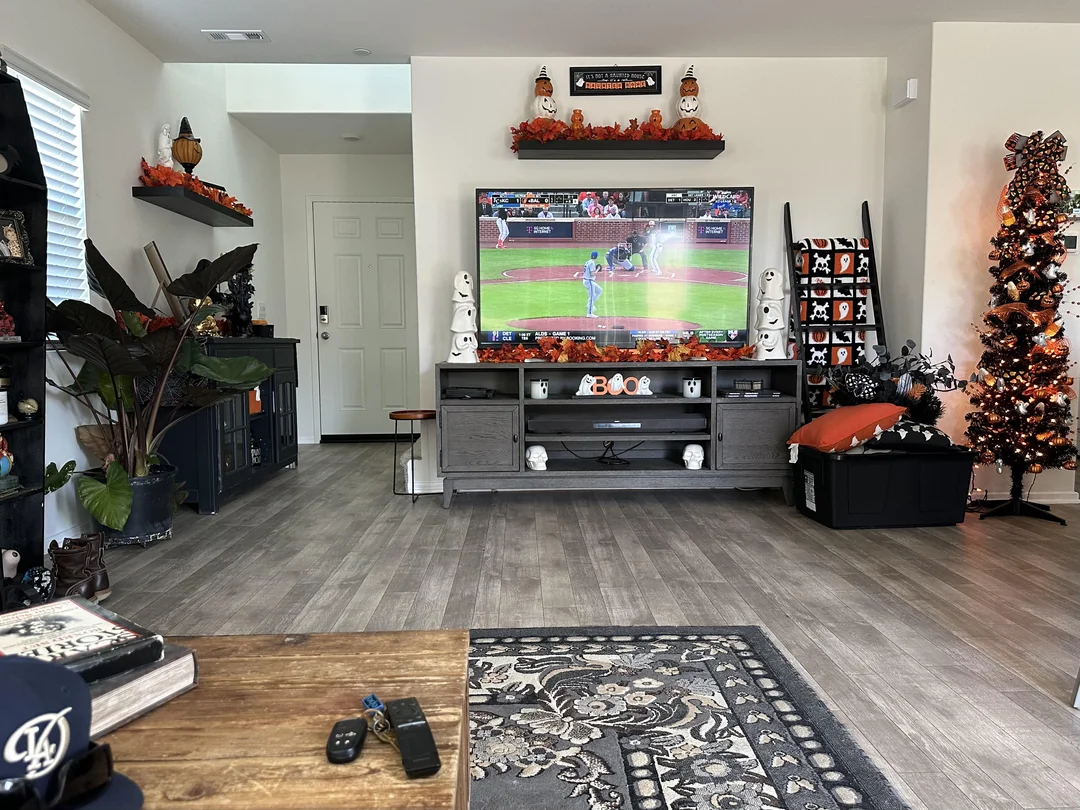
This section explains which IPTV devices work with Northline IPTV, how they compare, and the rules that apply to all of them. We do not sell hardware, so we have no reason to steer you toward a purchase. In most Canadian homes, the television, box or phone already in the living room will do the job. Below you will find the supported list, a side-by-side comparison, a room-by-room planning method, speed and placement advice, the setup path shared by every device, and a guide for each main device family.
We wrote it the way we write our policies: short rules, then a plain note on what each rule means for you. Where a choice depends on your home, we say so rather than pretending there is one right answer for everyone.
Our IPTV devices guides
Each main device family has its own step-by-step guide. If you already know what you will watch on, go straight there. If you are still comparing, the rest of this page helps you choose and plan.
Phones, tablets and PC follow the same core steps as the four guides above. They are covered further down this page, in the section on supporting screens, and the players they use are compared on our IPTV app page.
IPTV devices we support
Our service is delivered over the internet and played through an app. That means it runs on a wide range of hardware. These are the device families we support and test with our own logins.
Samsung and LG smart TVs
No extra device and one remote. The player choice is narrower and varies by model.
Android TV and Google TV boxes
The widest player choice, and often an Ethernet port for a steady picture.
Fire TV Stick
Compact and hidden behind the TV. Usually on Wi-Fi, with limited storage.
Apple TV
A smooth interface and regular updates, with fewer players than on Android.
iPhone, iPad, Android phones and tablets
Portable screens for a second room, and quick tools to check your access.
PC
A flexible option for a desk or a home office, less comfortable from the sofa.
If your device is not on this list, it may still work, but we cannot promise it. Ask support before ordering. Tell us the exact model and we will tell you what we know, and suggest a device from the list if needed. We would rather answer a question before you pay than after.
How we decide what to support
A device family makes our list when three things are true. Its official app store carries at least one of the six players we work with. Those players accept our login formats. And we can test the full path ourselves, from the welcome e-mail to the first channel. When a family meets all three, we write a guide for it and answer questions about it. When it does not, we say so plainly rather than leaving you to find out after you pay.
What this means for you: start with what you have. A smart TV bought in recent years, or a box already plugged into the TV, is often enough. Buy something new only if your current device cannot run any of the supported players from its official app store.
Comparing IPTV devices side by side
Every device on our list can play the service. They differ in comfort, flexibility, connection options and how well they handle 4K. This table gives a plain overview. It is a guide, not a ranking, and the right answer depends on your room and your router.
| Device | Where you get the player | Strengths | Points to watch |
|---|---|---|---|
| Samsung or LG smart TV | The TV’s official app store | No extra device, one remote | Player choice varies by model; licences tied to the TV |
| Android TV or Google TV box | The box’s official app store | Wide player choice, often a cable port | Quality depends on the box model |
| Fire TV Stick | The stick’s official app store | Compact, hides behind the TV | Limited storage, usually on Wi-Fi |
| Apple TV | The official app store on the device | Smooth interface, stable updates | Fewer players than on Android |
| iPhone, iPad, Android phone or tablet | The device’s official app store | Portable, good for a second room | Small screen, battery use |
| PC | Your computer’s official app store | Large screen options, flexible | Less comfortable from the sofa |
When choosing between two devices you already own, pick the one with the better connection to your router. A box on a cable usually beats a stick on weak Wi-Fi, even if the stick is newer. The same logic applies to a smart TV: a television next to the router often performs better than a box two rooms away.
If you are torn between the TV’s own apps and a separate box or stick, think about your remote. With the TV’s built-in apps, everything sits in one menu. With a separate device, you switch inputs, but you often get a wider choice of players and faster menus. Neither choice is wrong.
Start with the device you already own
Most people who write to us before ordering already have at least one suitable screen. Find your situation below. Each card tells you what to try first and where to read next.
Search its official app store for IBO Player or Smart IPTV. Both use the TV’s MAC address and ask for a publisher licence.
Then: read our smart TV guideCheck that it runs Android TV or Google TV and has system updates. It probably offers the widest player choice in your home.
Then: read our Android TV box guideClear some storage, check the Wi-Fi signal behind the TV, and install one player only.
Then: read our Firestick guideSearch the official app store on your Apple TV, iPhone or iPad for IPTV Smarters Pro or GSE Smart IPTV.
Then: read our Apple TV guideBoth work. Start with the phone to check your access, then decide if a TV device is worth adding.
Then: see the section on supporting screensPlug in an Android TV box, a Google TV device or a Fire TV Stick through HDMI.
Then: compare those guides before buyingWhichever card matches, the content you receive is the same. Every pack on our plans page works on every supported device. The device decides comfort and picture stability, not what you can watch.
Which players run on which IPTV devices
A player is the app that reads your access details and shows the catalogue. We support IPTV Smarters Pro, TiviMate, Smart IPTV, IBO Player, XCIPTV and GSE Smart IPTV. Not every player exists on every device, and availability changes when publishers update their apps.
| Device | Players to search for | Our first suggestion |
|---|---|---|
| Samsung or LG smart TV | IBO Player, Smart IPTV | IBO Player |
| Android TV or Google TV box | TiviMate, IPTV Smarters Pro, XCIPTV, IBO Player, GSE Smart IPTV | TiviMate |
| Fire TV Stick | TiviMate, IPTV Smarters Pro, XCIPTV | TiviMate |
| Apple TV | GSE Smart IPTV | GSE Smart IPTV |
| iPhone or iPad | IPTV Smarters Pro, GSE Smart IPTV | IPTV Smarters Pro |
| Android phone or tablet | IPTV Smarters Pro, XCIPTV, GSE Smart IPTV, IBO Player | IPTV Smarters Pro |
The reliable approach is simple: open your device’s official app store, search for one of the players above and install the one you find. If none appears, ask support and we will suggest a route that works for your device. Never install a player from a website, a file or a message instead.
We are independent from app publishers. We do not build these apps, sell them or control their updates. Some players ask for a licence after a period of use; if yours does, check the current price on the app’s official website. Our player guides cover the three most common ones in depth: TiviMate, IPTV Smarters Pro and IBO Player.
Smart TV apps or a separate device
This is the most common question from people with a smart TV. Should you use the television’s own app store, or plug in a box or stick? Both work. Here is how they compare.
Using the TV’s own apps
- No extra device, no extra cable, one remote.
- No input switching on the TV.
- A good choice when the TV is close to the router.
- The setup on IBO Player is done once per TV.
Points against
- Fewer players to choose from.
- Player licences are tied to that one television.
- Older TVs can be slow with a large catalogue.
- Some TVs have weak built-in Wi-Fi.
A separate box or stick reverses most of these points: more players, a licence situation that follows the device rather than the TV, and often faster menus, at the cost of another device and another remote. If your television is less than a few years old and close to the router, try its own apps first. If it is older, slow or far from the router, a box is usually the better path. Our smart TV guide goes through this decision for Samsung and LG models in detail.
One more consideration: who in the home will use the screen. A separate device adds an input to switch and a second remote to find. For some households that is no burden at all. For others, especially where an older relative is the main viewer, keeping everything inside the TV’s own menu is worth a narrower choice of players.
Planning screens room by room
Most homes end up with one main screen and one or two secondary ones. Planning them together, before you order, avoids surprises with the one-connection rule and with Wi-Fi in far corners of the house.
A simple planning method
Walk through the home with your phone and note three things for each room where someone might watch.
- Which device is in the room, or would be.
- How far it is from the router, and through how many walls.
- Whether it has an Ethernet port or a cable could reach it.
- Who watches there, and at what time of day.
- Whether two rooms are often used at the same moment.
The last point matters most. If the living room and a bedroom are often in use at the same moment, a single pack will not cover both. That is not a device question but a connection question, and it is answered by support, not by buying hardware. Write to us through the contact page and support will explain the conditions and the price for more simultaneous screens.
For the main screen, aim for the best connection you can give it: a cable if possible, otherwise a strong 5 GHz Wi-Fi signal. Secondary screens such as a tablet in the kitchen are less demanding, because people tend to watch them in HD on a smaller display.
One connection across all your IPTV devices
Each pack includes one simultaneous connection. This is the rule for Premium, VIP Premium and Ultimate 4K alike, and it applies to every device on this page.
You may enter the same credentials on several devices in your home. A typical setup is a box on the main TV, a stick in the bedroom and a tablet that moves around the house. All three hold your details. Only one plays at any given moment. When a second device starts while the first is still playing, one of them fails or stops.
What this means for you: close the player on one screen before starting another. Pausing is not always enough, because some players keep the stream open in the background. If a device refuses to play for no visible reason, check the other screens in the house first.
Your access is for your own household. Do not enter it on a device in another home. Besides breaking our terms, it takes your one connection and interrupts your own viewing. We do not publish a fixed multi-screen offer, so please ask rather than assume.
Internet speed per screen
The device itself is rarely the main bottleneck. The connection to it usually is. We use three figures per screen. If others in your home use the connection at the same time, their needs add to yours.
Recommended speed per screen
Run a speed test on the device you plan to use, in the evening, when home networks are busiest. A test on your phone next to the router tells you little about a stick behind the TV in another room. If the result is close to the figure for your chosen quality, step down one level in the player and compare. If support has arranged more than one screen for you, add the figures: a 4K television and an HD tablet together need about 25 plus 10, so 35 Mbps, before anyone else uses the internet.
Reading a speed test properly
A speed test gives you several numbers. The one that matters here is the incoming speed measured on the device that will play, not on another one. Run the test two or three times in the evening and look at the lowest result, not the best. If the lowest result stays above the figure for your quality, you have room. If it dips below, step the quality down or improve the connection to that device before blaming the player or the service.
Placement, Wi-Fi bands and cables
Placement matters as much as speed. A device behind the TV, inside a cabinet or two walls away from the router can lose much of its Wi-Fi signal. These are the habits that make the biggest difference, from most to least effective.
From most to least effective
- Use an Ethernet cable if the device has a port.
- On Wi-Fi, use the 5 GHz band when the device is close to the router.
- Use 2.4 GHz only when the device is far away and 5 GHz drops.
- Keep the router in the open, high up, not in a cupboard.
- Keep sticks out from behind the TV, using the extension that came with them if any.
- Restart the device and the router once in a while.
The 5 GHz band carries more data but reaches less far and passes through walls less well. The 2.4 GHz band reaches further but is slower and more crowded, especially in apartment buildings where many neighbours share the same air. For a TV device in the same room as the router or the next one, 5 GHz is nearly always the better choice.
A few small habits also help. Close other apps on the device before you start watching. Pause large updates or uploads on other devices while you watch in high quality. And if a device has been running for days, a full restart often restores a sluggish picture.
Your device is ready
Choose a pack and a duration of 1, 3, 6 or 12 months. You pay once in Canadian dollars and your access arrives by e-mail within minutes.
What a 4K setup asks of your IPTV devices
4K is the area where devices differ most. A 4K picture needs every link in the chain to support it: the screen, the device, the cable between them and the internet connection. If one link falls short, the picture drops back to a lower quality or stutters.
The 4K chain, link by link
The screen. A television with a 4K panel. A Full HD TV shows Full HD, whatever the source.
The device. A box, stick or smart TV app that can decode 4K. Check the model’s specifications.
The HDMI port and cable. Use a TV port marked HDMI 2.0 or HDMI 2.1, with a cable that supports it.
The connection. About 25 Mbps for that screen alone, steady through the evening.
The Ultimate 4K Pack is built for this kind of setup: 57,000+ 4K channels, 47,000+ series and 179,000+ movies, with 20 servers in Europe. It makes sense when every link above is in place. If one is missing, the Premium Pack or the VIP Premium Pack, both in HD, Full HD and 4K, may serve you just as well. Our 4K quality and bandwidth page explains each link in more depth.
What this means for you: before paying for a 4K-focused pack, test a 4K stream on the actual screen and device you will use, at the time you usually watch. A smooth test tells you more than any specification sheet.
Setting up any device, step by step
The details change from one device to the next, but the core path stays the same. Here it is, in the order that avoids most problems.
- Update the device. Install pending system updates before anything else. Older software can block newer player versions.
- Install a player. Open the official app store on your device and install one of the supported players. Check the publisher name.
- Order your pack. Choose your pack and duration. See current prices on the plans page.
- Open your access e-mail. It arrives within minutes and contains Xtream Codes details (server URL, username, password) or an M3U link.
- Add your account in the player. Enter the details exactly as written. Prefer Xtream Codes where the player offers it.
- Test playback. Open a few live channels, a series and a movie. Adjust quality to match your speed.
- Repeat on other devices. Enter the same details on each device you want to use, and play on one at a time.
Our full setup guide covers this route in more detail, with separate pages for Xtream Codes setup and the TV guide. If the access e-mail does not arrive, our activation guide explains what to check, starting with the spam folder.
Write things down once. Keep your welcome e-mail in a folder you can find, and note which player you installed on which device. When you change a device, reinstall a player or contact support, those two notes save several minutes and a round of questions.
Phones, tablets and PC: the supporting screens
Phones, tablets and PC have a specific role in most homes. They are rarely the main screen. They are the screen you use in the kitchen, in a bedroom without a TV, at a desk, or while someone else uses the living room TV for something else.
They are also your best diagnostic tool. If a channel plays on your phone but not on your TV device, over the same home network, the issue is almost certainly on the TV side: the device, its player or its connection. If the channel fails on both, the issue is more likely the channel itself or your account, and that is something we can check. Keep that test in mind; it turns a vague problem into a precise one.
On phones and tablets, IPTV Smarters Pro and GSE Smart IPTV are the usual players, from the official app store on the device. On a PC, use a supported player available from your computer’s official app store. The same login works on all of them, with the same one-connection rule. Our IPTV Smarters Pro guide covers phones and tablets step by step.
Watching on a PC
A PC is a practical screen for a home office, a student’s room or a desk in the corner of the living room. Install a supported player from your computer’s official app store and add your login as on any other device. A PC is usually close to the router or on a cable, so the connection is rarely the problem. The trade-off is comfort: a keyboard and mouse are less relaxing than a remote on the sofa. Many homes keep the PC as a backup screen for evenings when the TV is in use for something else.
The phone in your pocket is the fastest way to tell whether a problem lives in the TV or in the account.
Before you buy a new device
Sometimes a new device is the right answer: an old TV with no app store, a stick that has run out of storage, a screen in a room the Wi-Fi does not reach. Before you spend anything, go through these checks in order.
- Check 1
Test what you have
Install a supported player on your current device and test it with your login. Many devices that seem old still work well.
- Check 2
Test the connection, not just the device
Run a speed test on the device in the evening. A weak signal makes any device look slow.
- Check 3
Try a cable or a better spot
Move the device or the router, or add a cable. Retest before you decide.
- Check 4
Ask us
Send support the model and what you see. We tell you whether a new device would really change anything.
- Check 5
Buy from the supported list
If you do buy, pick a family from this page, with an official app store that carries a supported player.
We never recommend a specific retailer or quote device prices. Our only interest is that the device you pick runs a supported player and reaches your router well. That is why we always start with the hardware you already own.
If you do decide to buy, keep the receipt and the model name somewhere you can find it. Support will ask for the model if anything needs checking later, and knowing exactly which version you have saves time for both of us.
IPTV devices in three typical homes
Every home is different, but most fall into a few patterns. These three examples show how the advice on this page fits together in practice. Use the one closest to yours as a starting point.
An apartment with one main TV
The router sits in the living room, a few metres from a recent Samsung or LG smart TV. Here, the TV’s own app store is the natural first try: install IBO Player or Smart IPTV, add the playlist, and the TV becomes the only device you need. A phone holds the same login for the odd evening in bed. The TV is close to the router, so 5 GHz Wi-Fi or a short cable gives it a steady picture, even in 4K if the panel supports it.
A family house over two floors
The router is upstairs in an office, the main TV is downstairs, and the children have tablets. Wi-Fi to the living room is the weak point, so a TV box with an Ethernet cable, or a stick placed in the open, makes the biggest difference. TiviMate on the box gives the family a familiar grid guide. The tablets hold the same login with IPTV Smarters Pro. With one pack, only one screen plays at a time, so the family agrees on a simple rule, or asks support about more screens if two are often needed together.
- Main screen chosen first, then the secondary ones.
- The weakest Wi-Fi link fixed with a cable or better placement.
- One player per device, from the official app store.
- A household rule for the one connection.
A home office and a living room
One person works from home and watches the news on a PC during breaks, while the evening viewing happens on an Apple TV in the living room. The PC sits on a cable next to the router; the Apple TV uses 5 GHz Wi-Fi in the next room. The same login lives on both, used at different times of day, which fits the one-connection rule naturally. GSE Smart IPTV on the Apple TV and a supported player on the PC cover everything.
Your home does not match any of these? Describe it to us in a few lines: the rooms, the devices, where the router is and who watches when. We will suggest a setup before you order, and tell you honestly if one pack will cover it.
Rules that apply to all IPTV devices
Whatever device you use, a few rules stay the same. They protect your access, your device and your household, and they keep the service stable for you.
- Install players only from your device’s official app store.
- Keep your player and your device software up to date.
- Keep your access details within your household.
- Use one screen at a time unless support has arranged more for you.
- Keep your welcome e-mail private and in a safe folder.
No apps from outside the official store. Do not install players from websites, file-sharing links or messages from strangers. Apps from unofficial sources can carry malware, stop working without warning and expose your access details. If a player is not in your device’s official app store, choose another player or ask support for help.
A word on legality. The technology is legal; whether a service is legal depends on the broadcasting rights it holds, so check before subscribing. This applies to us and to any other provider you are considering. Our IPTV provider page explains who we are and how we work, and our commitments set out the rules we apply to every order.
Device problems and the first check for each
Most device issues have a typical first check. Start there before anything else. If it does not help, the help guides take you further, and support is available 7 days a week.
| What you see | Most likely cause | First check |
|---|---|---|
| Picture pauses every few minutes | Weak Wi-Fi to the device | Move to cable or 5 GHz, then retest |
| Login refused on one device only | Typing error on that device | Retype the details by hand |
| Device will not play while another works | Second screen still using the connection | Close the player on the other screen |
| Black screen on one channel | That channel, not the device | Try another channel and a movie |
| Guide times shifted | Device time zone | Fix the time zone in device settings |
| Menus slow on a stick | Storage almost full | Remove unused apps, clear the player’s cache |
The full guides are on our help page, including IPTV buffering, IPTV not connecting and IPTV black screen. When you write to us about a device, tell us the model, the player and what you see on screen. Support answers by e-mail or on WhatsApp at +33 6 44 65 43 13, in English and French.
Deep dive: why the same login can behave differently on two devices
Your login is the same everywhere, and so is the content behind it. What differs is everything between our servers and your eyes: the Wi-Fi or cable to the device, the device’s processing power, the player and its settings, the HDMI port and the screen. When one device plays smoothly and another struggles, the difference sits somewhere in that chain. Comparing the two, link by link, is the quickest way to find it.
Device words, explained
A few terms come up again and again in device menus and in our guides. Here they are in plain language.
- Smart TV
- A television with its own app store. Samsung and LG models are the ones we support directly.
- TV box
- A small device running Android TV or Google TV, connected to the TV by HDMI.
- Stick
- A compact device plugged straight into an HDMI port, such as the Fire TV Stick.
- Player
- The app that reads your login and plays the stream. It holds no content of its own.
- HDMI 2.0 and 2.1
- Versions of the TV port standard. For 4K, use a port that supports one of them.
- 5 GHz and 2.4 GHz
- The two common Wi-Fi bands. 5 GHz is faster at short range; 2.4 GHz reaches further.
- Ethernet
- A cable connection between the router and the device. The steadiest option.
Related guides
Once your device is chosen, these pages cover the next steps: the plans, the players, the setup and the questions worth asking any provider before you pay.
Not sure your device will work
Send us the exact model before you order. We will tell you which player to try and what to check first.
FAQ
Do I need to buy a new device?
Usually not. Most supported smart TVs, boxes, sticks, Apple devices, phones and PCs already in your home will work. Buy only if your current device cannot run a supported player.
Which device is best for IPTV?
The one with the best connection to your router and a supported player in its official app store. A box on a cable is often the most stable choice.
Can I use my pack on my phone and my TV?
Yes. You can set up both and use them one at a time. Each pack includes one simultaneous connection.
Can two people watch on two devices at once?
Not on a standard pack. For more screens at the same time, contact support, which will explain the conditions and the price.
Do you sell or supply devices?
No. We provide the service only. You use your own device with a player from its official app store.
Which players work with your service?
IPTV Smarters Pro, TiviMate, Smart IPTV, IBO Player, XCIPTV and GSE Smart IPTV. Availability depends on your device and its store.
Is Wi-Fi good enough, or do I need a cable?
Wi-Fi works when the signal is strong, ideally on 5 GHz close to the router. A cable is steadier, especially for 4K.
What do I need for 4K?
A 4K screen, a device that decodes 4K, an HDMI 2.0 or 2.1 port and about 25 Mbps for that screen.
My device is not on your list. Will it work?
It may, but we cannot promise it. Send us the exact model before ordering and we will tell you what we know.
Why does one device play well and another buffer?
Usually the connection to that device. Compare where each sits relative to the router, and try a cable or the 5 GHz band.