This guide covers an IPTV Apple TV setup with Northline IPTV, plus the iPhone and iPad that often live alongside it. Apple devices have a reputation for being calm and predictable, and that holds for IPTV too: once a player is in place, the experience tends to stay the same for months. The catch is at the start. Apple decides which apps appear in its store, so the choice of players is narrower than on Android, and it pays to check before you order.
Below you will find what to expect on tvOS, which players to look for, how the three Apple screens compare, a setup route that starts on the phone, the picture and network settings that matter, a 4K checklist, the update cycle that sometimes catches people out, and a troubleshooting table. As on every page, each rule comes with a note on what it means for you. For other device families, see the IPTV devices hub.
IPTV Apple TV: what to expect on tvOS
Apple TV runs tvOS, Apple’s system for the television. Every app comes from its official app store, and Apple reviews what appears there. For you, that means a clean environment with no stray apps and regular updates. It also means the list of IPTV players is short, and that publishers, not us, decide whether their app is offered on tvOS.
Calm menus
Apple’s interface is consistent from one app to the next, which helps the less technical members of the household.
Regular updates
tvOS and its apps update often. That keeps things secure, and occasionally means a player needs its own update.
One official store
No side doors. Players come from the store or not at all, which is exactly how we want it.
Fewer players
The shortlist is smaller than on Android. Search your store before you choose a pack.
Works with your iPhone
The phone can help with typing and is a second screen in its own right.
4K on 4K models
Apple TV models sold as 4K pair well with a 4K screen and a good line.
The interface is the reason many households choose Apple TV in the first place. Grandparents, children and visitors tend to find their way around without help, and the remote has few buttons to get wrong. Those qualities carry over to an IPTV player once it is installed.
What this means for you: if a supported player appears in your store, Apple TV is one of the most comfortable daily devices for IPTV. If none appears, you lose nothing by checking first: a Fire TV Stick or an Android TV box offers a wider choice for the same TV.
Finding a player on Apple devices
We support six players in total. On Apple devices, two of them are the usual candidates. Availability depends on the publisher, the device and the system version, and it can change from one season to the next, so treat this as a list of names to search for rather than a promise.
| Player | Apple TV | iPhone and iPad | Login it accepts | Licence |
|---|---|---|---|---|
| GSE Smart IPTV | Our first suggestion; search the store | Often available | Xtream Codes or M3U | Check the app’s official website |
| IPTV Smarters Pro | May appear; search the store | Our first suggestion on phones and tablets | Xtream Codes or M3U | May apply on some platforms |
The other four players we support are mostly found on Android devices and smart TVs. If you see one of them on an Apple device, it may work too, but check that its store listing comes from the official app store on that device and that it accepts Xtream Codes or M3U.
Our rule on players. We are independent from app publishers. We do not build, sell or receive anything from these apps. Some players on Apple devices unlock features with an in-app purchase or a licence. If yours asks, check the current price on the app’s official website. Whatever you decide, your Northline IPTV access stays the same.
A detail that saves confusion: in-app purchases on Apple devices are charged through your Apple account. That payment goes to the publisher via Apple, never to us. If you see a charge for a player, it is not part of your Northline IPTV order. Our own payment is a single one in Canadian dollars, by card or PayPal, at the time you order.
Switching between the two players
If you try one player and do not like its layout, the other accepts exactly the same login. Remove the first one from the Apple TV before installing the second, so only one app can hold your connection. Nothing changes on our side when you switch, and there is nothing to tell us. Your favourites and settings do not travel between players, though, so plan to mark your favourite channels again in the new one.
Checking your Apple store before you order
We would rather you spend a moment searching the store than order a pack for a device that cannot play it. Here is the short routine we suggest to anyone who writes to us from an Apple household.
You have a working route for the big screen. Note the name of the publisher shown in the store.
Then: order a pack and follow the setup steps belowThat works too. It accepts the same Xtream Codes login.
Then: read our IPTV Smarters Pro guideYour iPhone or iPad may still have one. The big screen may need another device.
Then: compare a stick or a box for that TVCheck that it still receives tvOS updates. Players follow the system closely.
Then: ask support with the model before orderingWhen you search, use the player’s exact name. App stores show many similar-looking apps, some of which have nothing to do with the players we support. Look at the publisher’s name on the listing and compare it with the player you intended to install. If anything about a listing looks odd, such as a promise of content included, skip it.
What this means for you: a minute in the store before ordering tells you whether your Apple TV is ready. If it is not, you have time to choose another device without any pressure, because your pack only starts when you order it.
Apple TV, iPhone and iPad compared
Your login works on all three Apple screens. The setup logic is identical. What differs is how you use each one, how you type on it and what picture quality makes sense on it.
| Point | Apple TV (tvOS) | iPhone (iOS) | iPad (iPadOS) |
|---|---|---|---|
| Typical role | Main living room screen | Quick checks, travel within the home | Kitchen, bedroom, second room |
| Typing your login | Remote, or iPhone keyboard | Copy and paste from your e-mail | Copy and paste from your e-mail |
| Best connection | Ethernet on models with a port | Strong home Wi-Fi | Strong home Wi-Fi |
| Sensible quality | Full HD or 4K | HD or Full HD | Full HD |
| Speed to plan for | 15 Mbps Full HD, 25 Mbps 4K | 10 Mbps HD | 15 Mbps Full HD |
| Battery to watch | No | Yes | Yes |
The point about quality is easy to miss. A 4K stream on a phone screen looks almost the same as Full HD, but it uses far more of your line. If the Apple TV and an iPad ever play at the same time (with extra screens arranged through support), keeping the iPad at Full HD leaves more room for the television.
Battery is the other practical difference. Streaming video keeps the screen bright and the radio busy, so a phone or tablet drains faster than usual. For a long evening on the iPad, keep it on its charger.
Start on the iPhone, finish on the TV
The fastest Apple setup we know starts on the phone. Copy and paste works there, so you can move the server URL, username and password from your e-mail into the player without retyping a character. Once the login works on the phone, you know the details are right, and any problem on the Apple TV must be a typing slip or a store issue, not the login itself.
Why this order works
Testing on the phone first splits the problem in two. If the phone plays, the login is good and the service is active. Anything that goes wrong on the Apple TV afterwards is a local matter, which is far quicker to find.
- Paste each field separately, not the whole e-mail.
- Check that no space was added before or after a field.
- Play one live channel and one movie on the phone.
- Close the player on the phone before moving to the TV.
The last item matters. Each pack includes one simultaneous connection. If the phone is still playing when you start the Apple TV, the television may refuse to play, and it looks like a login error when it is not.
IPTV Apple TV setup, step by step
With the login confirmed on the phone, the television setup is straightforward. Menu names can differ a little between tvOS versions and between players, but the order is the same.
- Update tvOS. In the settings, open the system section and install any pending software update. Let the Apple TV restart.
- Check the network. Use an Ethernet cable if your model has a port. Otherwise, confirm a strong Wi-Fi signal in the network settings.
- Open the official app store. Search for GSE Smart IPTV or IPTV Smarters Pro and install the one you find.
- Open the player and add a playlist or account. When offered a login type, choose Xtream Codes.
- Enter the three details. Server URL, username and password, exactly as they appear in your access e-mail.
- Name the profile. A clear name such as “Living room” helps when the same login lives on several devices.
- Let the lists load. The player stores your pack’s channels, series and movies. The first load takes longer than later ones.
- Test and adjust. Play a live channel, a series episode and a movie. Lower the quality if the picture pauses.
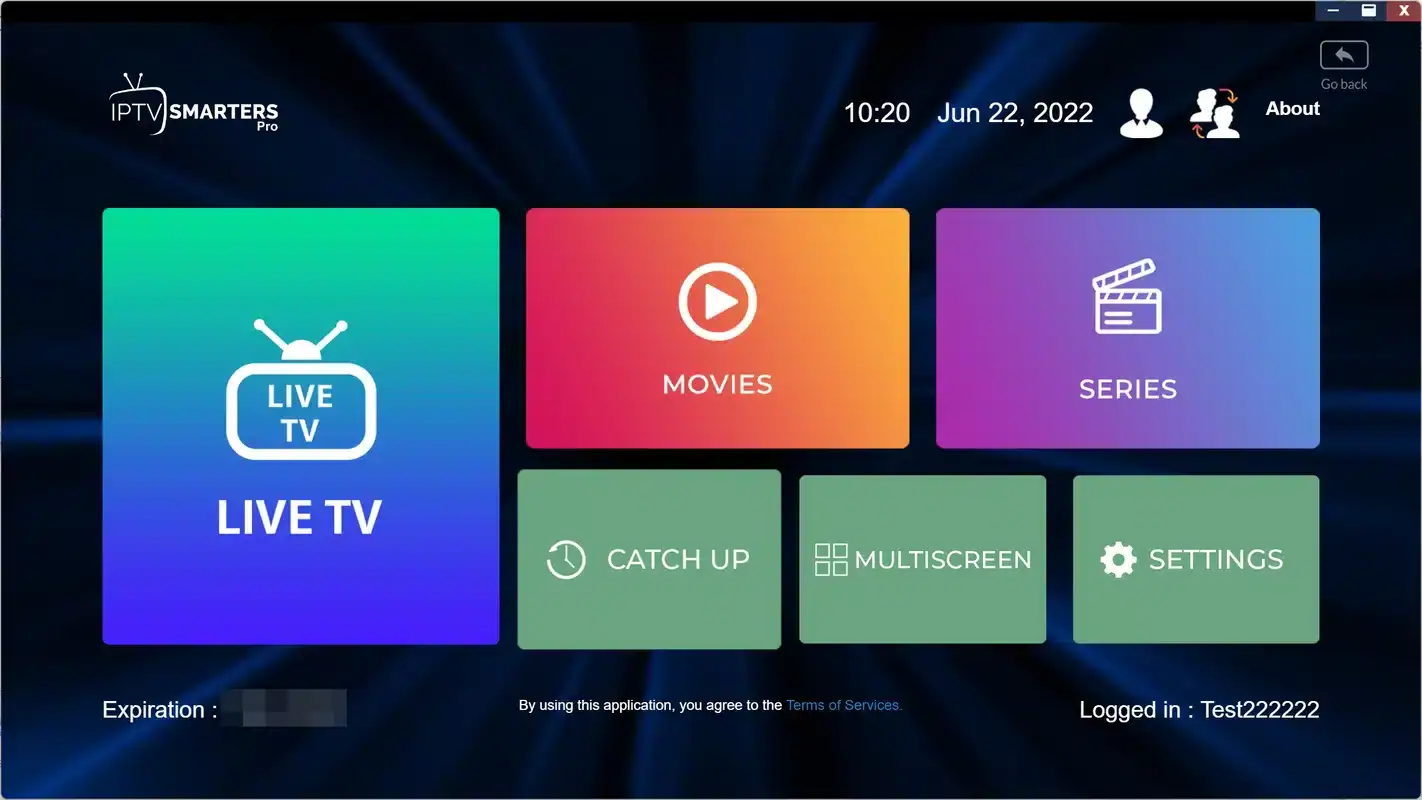
A typical login screen on tvOS. Every value comes from the access e-mail you receive within minutes of ordering.
If you prefer the M3U link, most Apple players accept it as well. The guide may then need a separate address. Our Xtream Codes setup page explains each field, and the M3U playlist setup page covers the link route. For a detailed tour of a player that runs on both iPhone and iPad, see the IPTV Smarters Pro guide.
Typing on tvOS without frustration
The on-screen keyboard on Apple TV is a single row or grid of letters that you move across with the remote’s touch surface or arrows. It works, but long server addresses and mixed-case passwords test anyone’s patience. There are better ways.
Let the iPhone type for the TV
When an iPhone is on the same home network and signed in to the same Apple account as the Apple TV, it often offers to type for the television as soon as a text field opens on screen. A notification appears on the phone; tap it, and the phone’s keyboard fills the field on the TV. You can paste from your access e-mail directly. If the notification does not appear, the Apple TV remote feature in the iPhone’s control centre offers the same keyboard.
Whichever method you use, read each field back before you confirm. Watch for the usual confusions: the lowercase “l” and the capital “I”, the letter “O” and the number zero, and a stray space at the end of a pasted field. The password field usually hides characters; if the player offers a “show” option, use it once to check.
What this means for you: typing is the step where most first logins fail on Apple TV, and it is also the easiest to fix. One careful pass, ideally with the phone’s keyboard, avoids almost every “invalid login” message on the first evening.
Your first evening with the player
Once the lists have loaded, the player shows your pack in three families: live channels, series and movies. Each family is split into categories. The first evening is the right moment to shape the player around your household, before habits form. A little work now makes every later evening shorter.
Mark favourites
Pick the channels your household actually watches. A short list beats scrolling a full catalogue with a touch remote.
Check the guide
Open the programme guide and compare one listing with the time on your Apple TV. If they differ, fix the time zone.
Set a player PIN
Most players offer a parental lock in their own settings. Choose a PIN nobody else in the home can guess.
Find your language
The catalogue includes French-language and international content. Browse the categories to see how they are organised.
The guide deserves a moment. In Canada, homes sit in several time zones, and a guide that is one or more hours off is usually a time zone setting, not a fault. On Apple TV, the time zone follows the device’s settings. Some players also offer a time shift for the guide. Our TV guide setup page explains both.
The parental lock belongs to the player, not to us. Each publisher designs it differently, so the menu name varies. If you forget the PIN, the player’s own reset steps apply, which may mean entering your login again.
What this means for you: the first evening sets the tone. A short favourites list, a correct guide and a PIN where needed turn the Apple TV into the household’s television rather than one person’s project.
Picture and sound settings on Apple TV
tvOS chooses sensible defaults, but a few settings decide whether the picture matches your television. They live in the Apple TV’s video and audio settings, with a few more inside the player.
| Setting | Where | What we suggest | What it does for you |
|---|---|---|---|
| Format | Apple TV settings, video and audio | Match your TV: 4K for a 4K set, 1080p for a Full HD set | A sharp picture without wasted effort |
| Match content, if offered | Apple TV settings, video and audio | Try it on; turn it off if the screen blinks too often when switching | Lets the TV adapt to each stream |
| Network type | Apple TV settings, network | Ethernet on models with a port | A steadier stream |
| Stream quality | Player settings | Full HD by default; 4K only on a 4K screen with a strong line | Fewer pauses on a busy evening |
| Guide refresh | Player settings | At start-up, once a day | Listings stay current |
| Audio output | Apple TV settings, video and audio | Leave on automatic unless you use a sound bar with a known setup | Avoids silent channels from a mismatched format |
If the picture looks washed out or too dark on one channel but normal on others, the cause is usually the source of that channel, not your settings. Try a second channel before you change anything. If every channel looks wrong, revisit the format setting and the TV’s own picture mode.
Apple TV ready for a login
Choose a pack and a duration of 1, 3, 6 or 12 months. You pay once in Canadian dollars, nothing renews, and your access arrives by e-mail within minutes.
Network: cable, Wi-Fi and placement
Apple TV models differ in their connections. Some have an Ethernet port and some do not. If yours has one, a cable to the router is the most reliable connection you can give it, especially for 4K. If yours does not, a strong Wi-Fi signal does the job well when the router is close.
Placement habits that help
- Place the Apple TV on a shelf, not inside a closed cabinet.
- Keep it a little away from other electronics stacked on the same unit.
- On Wi-Fi, use the 5 GHz band when the router is in the same room or the next.
- Use 2.4 GHz only if 5 GHz keeps dropping at that distance.
- Move the router out of cupboards and up off the floor.
Speed we plan for, per screen
Measure the speed on the network the Apple TV actually uses, in the evening, when your household and your neighbours are online. A test on your phone in the room next to the router says little about a device behind the television. Run the test two or three times and keep the lowest reading. If it stays above the figure for your chosen quality, you have room. If it dips below, step the quality down one level and work on the connection. Our IPTV buffering guide covers router placement and busy hours in more depth.
When the router is in another room
Apple homes often keep the router in an office or by the front door, far from the living room. If the Apple TV has no port and the Wi-Fi is weak where it sits, a mesh point near the television, or a pair of powerline adapters with a cable to the Apple TV, can bring the connection closer. Test the speed on the Apple TV after any change, at the same time of day as before, so the comparison is fair.
IPTV Apple TV in 4K
An Apple TV sold as a 4K model, connected to a 4K screen, is an excellent 4K setup. But 4K only works when every link in the chain supports it. When one link is missing, the player drops to a lower quality or stutters, and the cause is not always where people look first.
- Your Apple TV model is sold as 4K-capable.
- Your television displays 4K.
- The HDMI port on the TV accepts 4K, often marked HDMI 2.0 or 2.1.
- The HDMI cable is in good condition and suited to 4K.
- The Apple TV’s format setting is on 4K.
- The line holds at least 25 Mbps for that screen, measured in the evening.
If 4K pauses and Full HD plays smoothly, the cause is the connection in almost every case. Choose Full HD for now and improve the network before trying again. The Ultimate 4K Pack is built for a 4K Apple TV on a strong line. Our page on 4K quality and bandwidth explains each link of the chain in detail.
iPhone and iPad as second screens
Many Apple households use the Apple TV for the evening and an iPad or iPhone for everything else: the kitchen while cooking, a bedroom, a quiet corner. The same login works on all of them, one at a time. The setup is the same as on the phone in the earlier section.
Where phones and tablets shine
- Pasting your login makes setup quick and avoids typing slips.
- They move with you from room to room within the home.
- They are the quickest way to check that your access works.
- HD and Full HD look sharp on their smaller screens.
Where they fall short
- Battery drains faster while streaming.
- Wi-Fi weakens in far rooms of the home.
- They are easy to leave playing by accident, holding your one connection.
- Small screens are less comfortable for long viewing.
The third point causes more support messages than any other in Apple homes. Someone leaves a player open on an iPad in the kitchen, and later the Apple TV refuses to play. Swipe the player away from the app switcher on the iPad, or simply lock the screen with the player stopped, before starting the television.
What this means for you: treat the phone and the tablet as companions to the television, not competitors. Use them for checks and for the rooms the TV cannot reach, and close them properly when the big screen takes over.
Updates on Apple devices and your player
Apple releases system updates regularly, and players must keep pace. Most of the time this is invisible. Occasionally, a major tvOS or iOS update arrives before the player’s publisher has adapted, and the app closes on launch or shows an error. Knowing the cycle helps you stay calm when that happens.
- A system update arrives
Install it, or wait a little
If the Apple TV is your main screen, there is no harm in waiting until the player’s store page shows it has been updated.
- After the update
Open the player
If it opens and plays, nothing else is needed. Your login stays saved.
- If it misbehaves
Check the store
Look for a newer version of the player and install it. Restart the Apple TV afterwards.
- If no update exists yet
Use another screen meanwhile
The iPhone, iPad or another device keeps you watching while the publisher catches up.
Through all of this, your access details stay valid. There is nothing to reorder and nothing to change on our side. If you are unsure whether a problem comes from an update or from something else, write to us and we will tell you what we see from our side.
Choosing a pack for Apple devices
All three packs work on Apple TV, iPhone and iPad. The question is which screen matters most and how much your household watches.
VIP Premium Pack
- 27,000+ channels
- 61,000+ series
- 155,000+ movies
- HD, Full HD, 4K
Ultimate 4K Pack
- 57,000+ 4K channels
- 47,000+ series
- 179,000+ movies
- 20 servers in Europe
The catalogue includes French-language and international content. If you need a specific language, ask support before ordering. Durations are 1, 3, 6 or 12 months, paid once in Canadian dollars by card or PayPal, with no contract and no automatic renewal. Current prices are on the IPTV subscription price page, and the way payment works is set out on the IPTV payment page.
If you are not yet sure which player your Apple TV will offer, a short first duration is a calm way to confirm that everything works before committing longer.
One connection across your Apple household
Each pack includes one simultaneous connection. You can install the same login on the Apple TV, every iPhone and every iPad in your home, and on non-Apple devices too. Only one can play at any given moment.
Keep your login private and at home. Never enter your access details in a configuration profile, a web form or an app recommended by a stranger. If someone offers to set things up for you remotely, decline and contact us instead. Do not set the login up on a family member’s Apple TV in another home: it takes your single connection and breaks our terms.
Apple devices make it easy to leave a player running. An iPad set down in the kitchen, an iPhone in a pocket with the screen locked mid-stream, an Apple TV left on a channel while everyone goes to bed: each of these can hold your one connection. Before starting a new screen, stop playback on the last one. If you are not sure which device is still playing, putting the Apple TV to sleep from its remote and closing the player on each phone and tablet sorts it out.
If your household needs two screens playing at once, for example the Apple TV and an iPad in the evening, write to us through the contact page. Support will explain the conditions and the price. We do not publish a fixed multi-screen offer.
Mistakes we see in Apple homes
Apple households tend to have fewer technical problems than most, because the devices are consistent and the store is controlled. When something does go wrong, it is usually one of a handful of avoidable mistakes. We list them here so you can skip them.
- Ordering before searching the Apple TV’s store, then finding no supported player for the big screen.
- Pasting the whole e-mail paragraph into the server field instead of the URL alone.
- Leaving the iPad playing in the kitchen, then wondering why the Apple TV refuses to play.
- Installing a look-alike app with a similar name from a different publisher.
- Choosing 4K on an Apple TV that is connected to a Full HD television.
- Paying an in-app purchase and thinking it renewed the Northline IPTV pack.
- Accepting help from a stranger who asks for the login “to set it up for you”.
Most of these take seconds to fix once you know about them. The first one is the only one that can cost you time, which is why we repeat the advice to search the store before ordering. If you are unsure whether a listing is the right player, send us a photo of the store page and we will tell you.
A word on the in-app purchase confusion, because it comes up often. Your Northline IPTV access runs for the duration you chose, 1, 3, 6 or 12 months, and ends at the end of that period. Nothing you pay inside a player extends it. If your access stops, check your order date first; the guide for IPTV not connecting explains the expiry message and the other login errors.
What this means for you: on Apple devices, most problems are habits rather than faults. Avoid the list above and the setup tends to run quietly for the whole subscription.
Troubleshooting IPTV Apple TV
Most Apple problems fall into a few patterns. Find the row that matches what you see, try the first fix and test before moving on.
| What you see | Likely cause | First fix | Next step |
|---|---|---|---|
| Player closes right after a system update | Player not yet adapted | Check the store for a newer version | Use the iPhone or iPad meanwhile |
| “Invalid login” on the TV but the phone works | Typing slip on the TV | Retype with the iPhone keyboard | Can’t connect guide |
| TV refuses to play while nothing seems on | A phone or tablet still holding the connection | Close the player on other devices | Can’t connect guide |
| Picture pauses in 4K only | Line too weak for 4K at that moment | Switch to Full HD | Buffering guide |
| Sound but no picture | Format mismatch or one channel’s source | Try another channel, check the format setting | Black screen guide |
| Guide times are off | Time zone or player time shift | Check the Apple TV’s time zone | TV guide setup |
When you write to support, tell us your Apple TV model, the tvOS version, the player and its version, and what you see on screen. A photo of the screen often replaces several messages. We answer 7 days a week by e-mail and WhatsApp, in English and French.
On Apple devices, check the store first. A missing player or a pending update explains most first-evening surprises.
Apple terms in plain words
Some words come up again and again in Apple menus and in our guides. Here they are, with what each one means for your setup.
- tvOS
- The system that runs on Apple TV. Players must be built for it to appear in its store.
- iOS and iPadOS
- The systems on iPhone and iPad. A player may exist on these but not on tvOS.
- In-app purchase
- A payment made inside an app, charged through your Apple account to the publisher. Never part of our order.
- Format
- The Apple TV setting that decides the resolution sent to your television.
- Match content
- An option that lets the TV adapt to each stream. Helpful on some screens, distracting on others.
- Xtream Codes
- The login format with three fields: server URL, username and password.
- M3U link
- A single address listing your channels, accepted by most Apple players as an alternative.
Related guides for Apple users
These pages pick up where this one ends: other devices, the players in depth, the activation process and the plans.
Not sure your Apple TV is ready
Send us your model and what you see in the store. We answer 7 days a week by e-mail and on WhatsApp at +33 6 44 65 43 13, in English and French.
FAQ
Which players work on Apple TV?
GSE Smart IPTV is our first suggestion, and IPTV Smarters Pro may also appear. Search the official app store on your Apple TV, since availability changes.
Can I use the same login on Apple TV, iPhone and iPad?
Yes, one at a time. Each pack includes one simultaneous connection across all your devices.
Is it easier to set up on the iPhone first?
Usually, yes. Copy and paste is quicker on the phone, and a working phone login proves your details are correct.
Does IPTV on Apple TV support 4K?
On 4K Apple TV models with a 4K screen and HDMI port, yes. Plan for 25 Mbps for that screen, ideally on a cable.
Why did my player stop working after a tvOS update?
The publisher may not have adapted yet. Check the store for a newer version and restart the Apple TV. Your login stays valid.
Are in-app purchases part of my Northline IPTV order?
No. They go to the app’s publisher through your Apple account. Our payment is a single one in Canadian dollars by card or PayPal.
Why can I not find any supported player in my store?
Publishers decide where their apps appear. Try the other name on our list, or ask support which device suits that TV.
Do I need an Apple account to use the service?
The official store on Apple devices uses your existing Apple account to install apps. Your Northline IPTV access is separate.
Can my iPhone type the login on the Apple TV?
Often, yes. When both are on the same network and account, the iPhone offers its keyboard as soon as a text field opens on the TV.
Do you sell Apple TV devices?
No. We provide the service only. You use your own device with a player from its official app store.