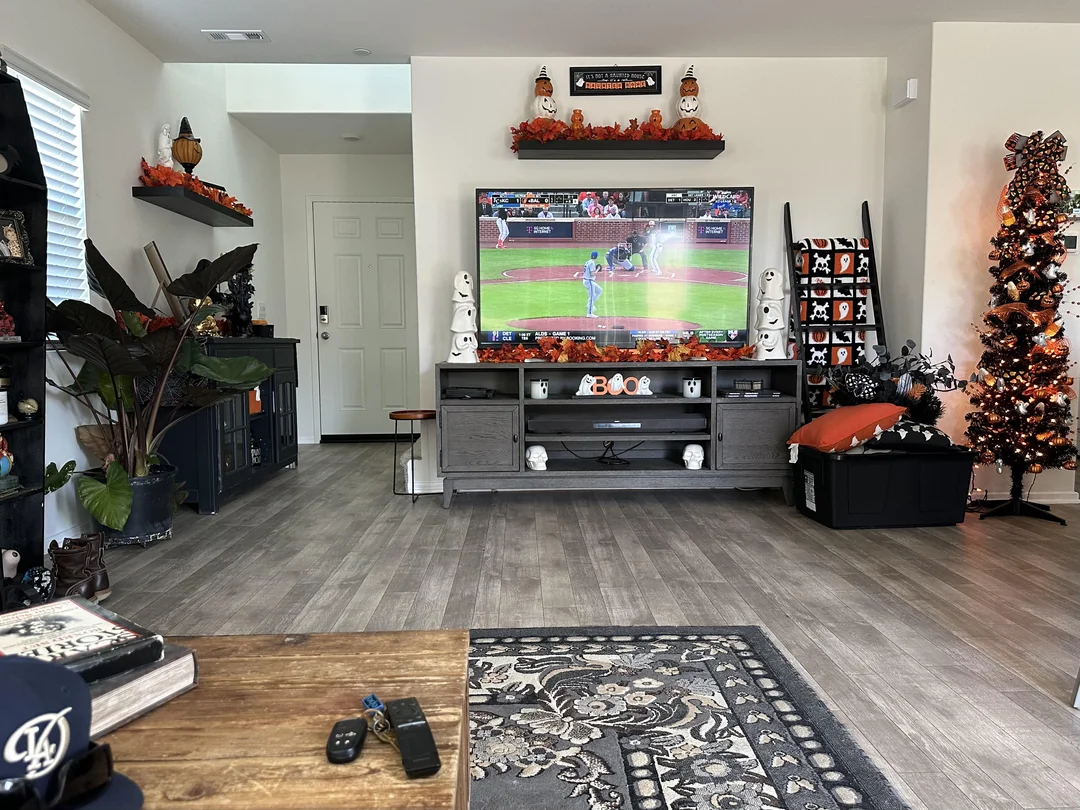
If your television already runs apps, you may not need anything else to watch Northline IPTV. This guide covers an IPTV smart TV setup on Samsung and LG models: how to check your set before you order, which players you are likely to find, how the MAC address method works, the step-by-step setup, the picture and network settings that matter, and the honest cases where a small external device does the job better.
We write this the same way we write our policies. Each section gives a rule or a step, then a short note on what it means for you. We only send you to the TV’s official app store and to the publisher’s official website. We never ask you to install anything from a USB drive or a link. If your screens or menus look different from what we describe, tell us; TV makers move menus around with every software update. For other device families, see the IPTV devices hub.
IPTV smart TV basics: Samsung and LG
Samsung and LG televisions each run their own system, with their own official app store. Samsung’s system is called Tizen and LG’s is called webOS. Neither is Android, which is why the list of IPTV players on a TV is shorter than on an Android TV box. Each player publisher decides whether to build a version for each system, and for which generations of televisions.
No extra device
The TV is the player. One remote, no input switching, no extra cable behind the screen.
Native 4K output
On a 4K set, the picture goes straight to the panel, with no HDMI link in between.
Official store only
Apps come from the TV maker’s store. Nothing else is needed and nothing else is advised.
Shorter player list
Usually IBO Player and Smart IPTV, sometimes IPTV Smarters Pro, depending on model.
Licence per TV
TV players often charge a publisher licence linked to that one television.
Follows the TV’s age
Older sets may stop receiving app updates. Recent sets usually have the best support.
The big advantage is simplicity. For many households, especially where an older relative is the main viewer, keeping everything inside the television’s own menu is worth more than a wider choice of players. The trade-offs are the shorter list, the licence tied to one set and processors that can feel slower than a recent box.
What this means for you: a recent Samsung or LG set close to the router is a good IPTV screen in its own right. An older or distant one may be better served by a small device plugged into its HDMI port. The next section helps you tell which case you are in.
Checking your television before you order
A few minutes with the remote tell you more than any compatibility list, including ours. The aim is to confirm that a supported player is available on your exact set and that the set is up to date. Work through these points in order.
- Find the model and software version. In the TV’s settings, open the support or general section and look for information about the TV. Note the model and software version.
- Install pending software updates. From the same area, check for updates and install them. Let the TV restart.
- Open the official app store. On Samsung it sits in the apps area of the home screen; on LG it is in the home launcher.
- Search for each player name. Try IBO Player, Smart IPTV and IPTV Smarters Pro. Note which ones appear.
- Check the connection. In the network settings, see whether the TV is on a cable or Wi-Fi, and how strong the signal is.
You have a route. Both use the TV’s MAC address and ask for a publisher licence.
Then: read the MAC address section belowThat route lets you type your login directly on the TV, much like on a box.
Then: follow the setup steps on this pageYour set’s store does not carry one. The TV can still be used through a small external device.
Then: compare a stick or a box for this TVPlayers may work today and stop being updated later.
Then: choose a short duration first, or an external deviceIf you are unsure about anything, write to us before ordering. Send the brand, the model and the software version, and tell us what the store showed. We will tell you what we know about that set. A question before you pay is always easier to answer than one after.
TV players: what you will find in the store
Three of the six players we support are the usual candidates on Samsung and LG televisions. Availability is decided by each publisher, model by model, so this is a list of names to search for rather than a promise. What you find in your own store is what you can use.
| Player | How your login is added | Licence | Our note |
|---|---|---|---|
| IBO Player | MAC address and device key, playlist added on the publisher’s official website | Required after the starting period | Our first suggestion on many sets; full guide available |
| Smart IPTV | MAC address, playlist added on the publisher’s official website | Required | A long-standing TV player with a simple list layout |
| IPTV Smarters Pro | Typed on the TV: server URL, username, password | May apply on some platforms | Appears on some models only; check your store |
All three accept your Northline IPTV access. The content is identical whichever you choose; only the menus and the way you add your login change. Our IBO Player guide covers the most common TV player screen by screen, and the IPTV app guide compares all six supported players.
Our rule on players. We are independent from app publishers. We do not build, sell or receive anything from these apps. When a TV player asks for a licence, check the current price on the app’s official website. Only ever enter your details on that official website, never on a page someone sends you in a message.
How TV players differ from box players
People who have used IPTV on a box are sometimes surprised by TV players. The logic is the same, but the way you add your login and the way the licence works can be quite different. This comparison sets the two side by side.
| Point | Smart TV player | Android TV box player |
|---|---|---|
| Where you get it | The TV’s official app store | The box’s official app store |
| How you add your login | Often on the publisher’s website with the TV’s MAC address | Usually typed on screen |
| Player choice | Short; depends on brand, model, region | Wide |
| Licence follows | The television | The app account or device, depending on the player |
| Extra device and remote | None needed | Box plus remote |
| Cable port | On many sets | On most boxes |
| Software updates | On the TV maker’s schedule | On the box maker’s schedule and the store’s |
Another practical difference is how a change of login is handled. On a box, you edit the details in the player. On a MAC-based TV player, you return to the publisher’s website, update or replace the playlist there and restart the player. Neither is difficult, but it helps to know where to look before you need it, for example when you renew with a new order and receive new details.
The licence row is the one worth thinking about before you pay a publisher. If you replace the television one day, a licence linked to the old set does not move with it. On a box, the same question depends on the player. Neither is good or bad; it simply affects how you plan.
What this means for you: if you expect to keep your television for a long time, the TV route is tidy and simple. If you expect to change sets soon, a box or stick that can move from one TV to the next may suit you better.
The MAC address method, explained
IBO Player and Smart IPTV do not usually ask you to type your login with the remote. Instead, when you open them for the first time, they show an identifier for your television, called a MAC address, and sometimes a device key. You then go to the publisher’s official website on a phone or computer, enter that identifier, and add your playlist there. The player on the TV picks it up the next time it starts.
What a MAC-based player typically shows the first time it opens. The identifiers belong to your TV; the playlist comes from your access e-mail.
The MAC address belongs to your TV, not to us and not to your pack. It does not change when you order again, and it is not a secret in the way a password is, but there is no reason to post it anywhere. The device key, if your player uses one, is closer to a password for the playlist page, so keep it private.
The method has one real advantage: you type the long playlist address on a phone or computer, where copy and paste works, rather than with the TV remote. It has one real risk: fake websites that imitate the publisher’s page to collect playlists and identifiers. Always reach the publisher’s website by typing its name yourself, or from the player’s own instructions on screen, and never from a link in a message.
Copy the identifiers with care
A MAC address is a string of letters and numbers in pairs, separated by colons. One wrong pair sends your playlist to the wrong place, and the TV stays empty.
- Take a photo of the TV screen showing the MAC address and key.
- Zoom in on the photo when you type the identifier on the website.
- Paste the playlist address from your e-mail rather than retyping it.
- Restart the player on the TV once the website confirms.
IPTV smart TV setup, step by step
This is the full route for a Samsung or LG television, covering both the MAC method and the direct login. Menu names differ between models and software versions, but the order holds.
- Update the TV. Install any pending software update from the settings and let the set restart.
- Connect it well. Use a network cable if the TV has a port and the router is reachable. Otherwise, check the Wi-Fi signal in the network menu.
- Install the player. From the official app store, install IBO Player, Smart IPTV or IPTV Smarters Pro, whichever your set offers.
- Open it once. A MAC-based player shows its identifiers. A direct-login player shows a form for your details.
- Add your access. For a MAC-based player, go to the publisher’s official website and add your playlist from your access e-mail. For a direct-login player, type the server URL, username and password.
- Restart the player. Close it fully and open it again so it reads your lists.
- Let the first load finish. The TV stores your pack’s channels, series and movies. Leave the remote alone until the categories appear.
- Test three things. A live channel, a series episode and a movie. If all three play, you are done.
Typing with a TV remote is slow. If you use the direct login, take each field one at a time and read it back against your e-mail. Many Samsung and LG sets accept a USB keyboard, and both makers have official phone apps that can act as a remote with a keyboard, which makes long fields much easier.
For a field-by-field explanation of the login formats, see our Xtream Codes setup and M3U playlist setup guides. Your access e-mail contains both formats, so you can use whichever the player asks for.
Licences tied to the television
Most TV players are paid for by their users, through a licence sold by the publisher. It is often linked to the MAC address of one television. That has a few practical consequences that are worth knowing before you pay.
What a TV-linked licence means in practice
The licence covers the player on that television, not your Northline IPTV access. If you replace the TV, the new set has a new MAC address, and the publisher’s own rules decide what happens to the licence. If you have two televisions, each one may need its own. And if your Northline IPTV access period ends, the player licence is unaffected; you can add a new playlist to the same player when you order again. For the current price and the exact terms, check the app’s official website.
We keep this strictly separate from our own service for a reason. You pay us once, in Canadian dollars by card or PayPal, for a pack and a duration. You pay the publisher, if you choose, for the player. The two never mix, and we never collect a player licence on anyone’s behalf. If someone offers to sell you a “licence plus channels” bundle for a TV player, that is not us and not the publisher’s official route.
What this means for you: decide on the player before paying for its licence. Some TV players offer a starting period before the licence applies, so you can often check that the player suits your TV and your household first.
TV checked and ready
Choose a pack and a duration of 1, 3, 6 or 12 months. One payment in Canadian dollars, no contract, nothing renews, and your access arrives by e-mail within minutes.
Getting the picture right on the TV itself
On a smart TV, the player and the panel are in the same box, so the television’s own picture settings apply directly to every stream. Defaults are not always the best match for live channels and films. A few checks go a long way.
| Setting | Where to look | What we suggest | Why |
|---|---|---|---|
| Picture mode | TV picture settings | A standard or film mode rather than a bright shop mode | More natural colours and less glare |
| Motion smoothing | TV picture settings, often under clarity or motion | Low or off for films; try both for live sport-type content | Avoids an artificial look on movies |
| Stream quality | Player settings | Full HD by default, 4K on a 4K set with a strong line | Fewer pauses on busy evenings |
| Quick start, if present | TV general settings | Leave it on, but unplug the TV now and then | Quick start keeps apps in memory, which can make them stale |
| Time and time zone | TV general settings | Automatic, with your correct time zone | Keeps the programme guide in step |
The quick start option deserves a word. Many televisions do not really switch off when you press the power button; they sleep, so they can wake instantly. Apps, including the player, stay half-open in memory for days. If the player becomes sluggish or the lists stop updating, unplug the TV from the wall for a moment. That gives it a true restart and often restores the speed it had at setup.
The time zone matters more in Canada than in many places, because the country spans several. If the guide shows programmes an hour or more out, the TV’s time zone or the player’s time shift is the cause. Our TV guide setup page walks through both.
Sound from the TV and from a sound bar
Picture gets most of the attention, but sound causes its own share of questions. On a smart TV, the player hands the audio to the television, which then sends it to its own speakers or to a sound bar. Each step can change how it sounds, and occasionally whether it sounds at all.
Audio track
Many movies and series carry more than one language track. Most players let you switch it during playback.
Sound bar link
A sound bar on the TV’s audio-return HDMI port lets one remote control the volume of both.
Lip sync
If voices arrive slightly before or after the lips move, look for an audio delay setting on the TV or sound bar.
Output format
Leave the TV’s audio output on automatic unless you know your sound bar’s needs.
A channel that plays a picture with no sound is usually a format question rather than a fault. The stream carries a type of audio that the TV or the sound bar does not pass through with the current setting. Switching the TV’s digital audio output from a pass-through mode to an automatic or standard mode often brings the sound back. If only one channel is silent and the rest play normally on the same settings, the source of that channel is the likely cause, and we would like to hear about it.
What this means for you: before blaming the service for a sound problem, try another channel and check the TV’s audio output. If the issue follows every channel, it is a setting. If it stays with one channel, send us its name.
Network: TV Wi-Fi or a cable
Televisions often sit in corners, against walls or inside furniture, where Wi-Fi is weakest. Their built-in Wi-Fi is also not always as strong as that of a dedicated box. If your set has a network port and the router is reachable, a cable is the most useful upgrade you can make.
Speed we plan for, per screen, measured on the TV
Measure the speed on the television, not on a phone next to the router. Many smart TVs have a network test in their settings, and some offer a speed test app in their store. Test in the evening, when the household and the neighbourhood are online, and repeat it two or three times. Keep the lowest reading as your reference.
On some televisions, the network port is not faster than the Wi-Fi. That sounds odd, but it happens. If you can, test both and keep whichever gives the steadier result. In most homes, the cable still wins on stability even when the raw speed is similar, because it does not dip when someone walks between the router and the TV.
- Use a network cable if the TV has a port and the router can reach it.
- On Wi-Fi, prefer 5 GHz when the router is in the same room or the next.
- Use 2.4 GHz only if 5 GHz drops at that distance.
- Move the router out of cupboards and away from the floor.
- Consider a mesh point or powerline adapters near the TV if the router is far away.
If you see pauses at a particular time of day, the line is likely shared with other devices in the home. Our IPTV buffering guide covers busy hours, router placement and how to read a speed test in detail.
IPTV smart TV in 4K
A 4K smart TV is one of the simplest 4K setups there is, because the player sends the picture straight to the panel with no HDMI link to worry about. That leaves two links to check: the TV’s ability to decode the stream in its player, and the connection.
Your 4K check for a smart TV
- The television is a 4K model.
- Its software is up to date.
- The player you use offers 4K playback on that model.
- The TV is on a cable, or on strong 5 GHz Wi-Fi.
- A test on the TV reads at least 25 Mbps in the evening.
If 4K pauses but Full HD plays smoothly, the cause is the connection in almost every case. Switch to Full HD for now and work on the network. A large 4K screen pairs naturally with the Ultimate 4K Pack, with 20 servers in Europe. Our page on 4K quality and bandwidth explains the whole chain.
When a smart TV is not the best choice
We like smart TVs as IPTV screens, but we will not pretend they suit every home. Here is a straight comparison with a small external device on the same television.
Stay with the TV’s own apps if
- A supported player appears in your TV’s store.
- The set is recent and still receives software updates.
- The router is close, or a cable reaches the TV.
- You value one remote and no input switching.
- You plan to keep this television for a long time.
Add a box or stick if
- No supported player appears in the store.
- Menus and channel changes feel slow on the TV.
- The TV’s Wi-Fi is weak and no cable can reach it.
- You expect to replace the TV soon and want the setup to move with you.
- You want a wider choice of players.
A small device does not replace the TV; it plugs into one of its HDMI ports. Our Android TV box guide covers the option with the most players and a cable port, the Firestick guide covers the compact option, and the Apple TV guide covers the Apple route.
Official store only. Do not install players from USB drives, files or links shared online. Apps from outside the TV’s official store can contain malware and can expose your access details. If the player you want is not in your store, choose another supported player or add an external device. We will never ask you to change your TV’s security settings.
Older televisions and app support over time
A television lasts many years, but its software support does not always last as long. Knowing how a set ages helps you plan, especially before choosing a long duration.
- A new set
Full support
The TV maker sends updates and publishers build for the current system. The widest player choice your brand offers.
- A few years in
Updates slow down
The TV still receives occasional updates. Players keep working, sometimes with older versions.
- Later
Players stop updating
Publishers may stop building for that generation. The player you have may keep working, but new installs can disappear from the store.
- At that point
Add a device
A box or stick in the HDMI port gives the TV a second life for IPTV, with current players.
If a player that once worked vanishes from your store, the decision came from the publisher, not from us. Your access details remain valid and work in any other supported player. Keep your access e-mail somewhere safe so you can set things up again quickly when a change like this happens.
What this means for you: for an older set, a short first duration lets you confirm everything works before you commit to longer. Our page on the monthly IPTV subscription explains that approach.
Choosing a pack for a smart TV
All three packs run on Samsung and LG televisions. The choice depends on what the household watches and on whether the screen and line are ready for 4K.
Ultimate 4K Pack
- 57,000+ 4K channels
- 47,000+ series
- 179,000+ movies
- 20 servers in Europe
On an older or slower television, a very large catalogue makes the player’s lists longer and can make menus feel heavier. If your set is a few generations old, the Premium Pack is a comfortable start. The catalogue includes French-language and international content; if a specific language matters, ask support before ordering.
Durations are 1, 3, 6 or 12 months, paid once in Canadian dollars by card or PayPal, with no contract and no automatic renewal. Current prices are on the IPTV subscription price page.
One connection: your TV and your other screens
Each pack includes one simultaneous connection. You can set up the same access on the smart TV, a phone, a tablet and another television in your home, and use them one at a time. If a second screen starts while the TV is playing, one of them stops or shows an error.
Smart TVs with a quick start option have a particular trap. Turning the TV off with the remote does not always close the player; it may keep the stream open in the background for a while. If someone then starts watching on a tablet, the tablet may be refused. Leave the player with the back button before switching off, or unplug the TV if a stream seems stuck.
Your access is for your household only. Do not add it to a TV in another home, even a family member’s. It takes your single connection and breaks our terms. If your home needs more screens playing at the same time, write to us through the contact page; support will explain the conditions and the price.
Two televisions in the same home
Many Canadian homes have a main TV in the living room and a second one in a bedroom or basement. Both can hold your login. If both are Samsung or LG sets using a MAC-based player, each television has its own MAC address, so you add the playlist once for each set on the publisher’s website, and each may need its own player licence. Then use them one at a time. If the basement TV is far from the router, it is often the one that benefits most from a small external device on a cable or a mesh point nearby.
Troubleshooting IPTV smart TV
Most smart TV problems come from one of five places: the MAC setup, the login, the connection, the TV’s memory or the clock. These scenarios cover what we see most.
Check the MAC address you typed against the photo of the TV screen, pair by pair.
Then: restart the player, then the TVRecheck username, then password, then server URL, against your e-mail.
Then: read the guide for IPTV not connectingRun a speed test on the TV and try a cable or 5 GHz.
Then: read the buffering guideUnplug the TV from the wall for a moment to clear its memory.
Then: check for a TV software updateTry the Full HD version of the channel and another channel.
Then: read the black screen guideCheck the TV’s time zone and the player’s time shift.
Then: read the TV guide setup pageThe full guides are IPTV buffering, IPTV not connecting and IPTV black screen, and the help hub explains how to sort any problem by symptom. When you write to us, include the TV brand and model, the software version, the player and a photo of the screen.
On a smart TV, a true restart from the wall socket solves more than any setting. Try it before anything else.
Smart TV terms in plain words
These words appear in TV menus, player screens and our guides. Here they are, with what each means for your setup.
- Tizen and webOS
- The systems running on Samsung and LG televisions. Players must be built for each one.
- MAC address
- An identifier for your TV’s network connection. TV players use it to link your playlist to the set.
- Device key
- A short code some players show next to the MAC address, used on the publisher’s website.
- Quick start
- A TV option that sleeps instead of switching off. Fast to wake, but apps stay in memory.
- Motion smoothing
- A TV feature that adds frames between frames. Some like it for live content; many turn it off for films.
- Publisher licence
- The player maker’s own fee, separate from your Northline IPTV order and often tied to one TV.
- Playlist
- Your access as an M3U link or Xtream Codes details, added to the player.
Related guides for smart TV owners
These pages continue where this guide ends: the other devices, the TV players in depth, the activation steps and the plans.
Ask before you order
Send us your TV brand, model and what the store shows. We answer 7 days a week by e-mail and on WhatsApp at +33 6 44 65 43 13, in English and French.
FAQ
Does IPTV work on every Samsung and LG TV?
It works on sets whose official app store offers a supported player. Search your store before ordering, or send us your model.
Which player should I use on my smart TV?
Whichever supported player your store offers. IBO Player and Smart IPTV are the usual choices; IPTV Smarters Pro appears on some models.
What is the MAC address some players show?
An identifier for your TV. You enter it on the publisher’s official website along with your playlist, and the player picks it up.
Is the player licence part of my Northline IPTV order?
No. The publisher sells it, often tied to one TV. Check the current price on the app’s official website.
Can I watch 4K on my smart TV?
Yes, on a 4K set whose player supports 4K, with at least 25 Mbps for that screen. A cable helps.
Why is my TV slow to change channels?
TV processors are often slower than recent boxes, and quick start keeps apps in memory. Unplug the TV for a moment and keep its software updated.
Can I install a player from a USB drive?
We advise against it. Use only the TV’s official app store. Apps from elsewhere can carry malware and expose your details.
What happens if I replace my television?
Your Northline IPTV access moves with you; enter it in a player on the new set. A player licence tied to the old TV follows the publisher’s rules.
Can I use the same access on my TV and a tablet?
Yes, one at a time. Each pack includes one simultaneous connection.
Why does the guide show the wrong times?
Usually the TV’s time zone or the player’s time shift. Set the time to automatic with your correct time zone.