This page is our rulebook for choosing an IPTV app. It covers what a player does, which players we support, how to match one to your device, who pays for what, and what to do when an app behaves strangely. We wrote it the way we write our policies: short sentences, plain rules, and a note on what each rule means for you. Read it once before you install anything, and the first evening with your new service should go smoothly.
Northline IPTV is an IPTV provider for Canadian homes. We supply live channels, series and movies, plus support 7 days a week. The app is a separate tool, built and maintained by someone else. Once you see that split clearly, nearly every setup question answers itself, and you always know whom to ask when something goes wrong.
Our IPTV app guides at a glance
Three players get a full guide of their own. Each one covers installation, the login screens, the settings worth a look, licence questions and the common fixes. If you already know which player you want, jump straight in. If not, keep reading: the rest of this page helps you decide.
Smart IPTV, XCIPTV and GSE Smart IPTV follow the same logic as the three guides above. If you pick one of them, read the guide closest to it: XCIPTV behaves much like IPTV Smarters Pro, Smart IPTV works with a MAC address like IBO Player, and GSE Smart IPTV is a common pick on Apple devices. Our full setup route also applies to all six.
What an IPTV app does, and what it leaves to us
A player has one job. It reads the login details we send you, asks our servers for the list of categories in your pack, draws a menu and a TV guide, and plays the stream you choose. Everything you see on screen passes through it, which is why it feels like “the service”. It is not. It is the window, not the view.
When you open a player for the first time, it is empty. No channels, no movies, no guide. It only fills up once you add your own subscription details. That is how a legitimate player is built. If a store listing, a video or a stranger promises “content included” inside an app, treat it as a warning sign and look elsewhere.
What this means for you: the picture quality you get depends mostly on two things, your internet connection and the pack you chose. The app decides how comfortable the service feels day to day: how menus are laid out, how the guide scrolls, which remote buttons do what, and how easily you reach your favourites. Two people with the same pack can have a very different evening simply because they picked different players.
The app also does not manage your account with us. It cannot renew your plan, change your pack or add screens. Those requests come to our team. In the other direction, we cannot fix a bug inside the app, change its menus or push an update. Those belong to the publisher. We help with both sides as far as we can, but we only control our own.
Who is responsible for what
Most frustration with an IPTV app comes from asking the wrong party. Here is the split, item by item. Keep it handy; it saves a round of messages when something needs fixing.
| Item | Northline IPTV | App publisher | You |
|---|---|---|---|
| Channels, series and movies in your pack | Yes | No | No |
| Login details (Xtream Codes or M3U) | Yes | No | Keep them private |
| Player menus, updates and bugs | No | Yes | Keep the app updated |
| Player licence or paid features | No | Yes | Decide whether to buy |
| Installing the player | Guides only | Store listing | Yes |
| Home connection and Wi-Fi | Advice only | No | Yes |
| Support for your account | 7 days a week | No | Write to us |
Read the table across, not down. For any problem, find the row that matches it and you know who can actually change it. A login refused for an expired plan is ours. A menu that vanished after an update is the publisher’s. A stream that stutters in the bedroom but not in the living room is usually the home network.
Our position on apps. We are independent from app publishers. We do not build, sell or own any of the six players listed here, and we receive nothing from them. We test our login details with each one and write guides so you can set them up quickly. When a publisher changes its app, our steps may drift out of date. Tell us, and we update the guide.
The six players we support
The players below accept our login details. Each one is available from official app stores, but availability depends on your device, its software version and the store itself. Before you decide, search the store on the device you will actually use.
| Player | Typical devices | Login it accepts | Publisher licence |
|---|---|---|---|
| IPTV Smarters Pro | Android phones and tablets, iPhone and iPad, Fire TV Stick, Android TV boxes | Xtream Codes or M3U | May apply on some platforms |
| TiviMate | Android TV and Google TV boxes, Fire TV Stick | Xtream Codes or M3U | Premium features are paid |
| IBO Player | Samsung and LG smart TVs, Android devices | M3U or Xtream Codes, added with MAC address and device key | Licence required after the starting period |
| Smart IPTV | Samsung and LG smart TVs | M3U, added with MAC address | Licence required |
| XCIPTV | Android phones, Android TV boxes, Fire TV Stick | Xtream Codes or M3U | Check the app’s official website |
| GSE Smart IPTV | iPhone and iPad, Apple TV, Android devices | Xtream Codes or M3U | Check the app’s official website |
Where a licence applies, check the current price on the app’s official website. We never quote it, because the publisher sets it and can change it whenever it wants. A figure printed here would go stale, and you would be planning around a number we do not control.
What this means for you: on a phone, a tablet or a TV box you have several choices, so you can pick on comfort alone. On a Samsung or LG smart TV the list is shorter, and the TV-based players tie their licence to that one television. If the TV is your main screen, read the licence notes before you settle on a player there.
Matching an IPTV app to your device
The device you watch on most narrows the field faster than any feature list. Start there, not with the app that a friend recommended for a different screen.
Start with the main screen
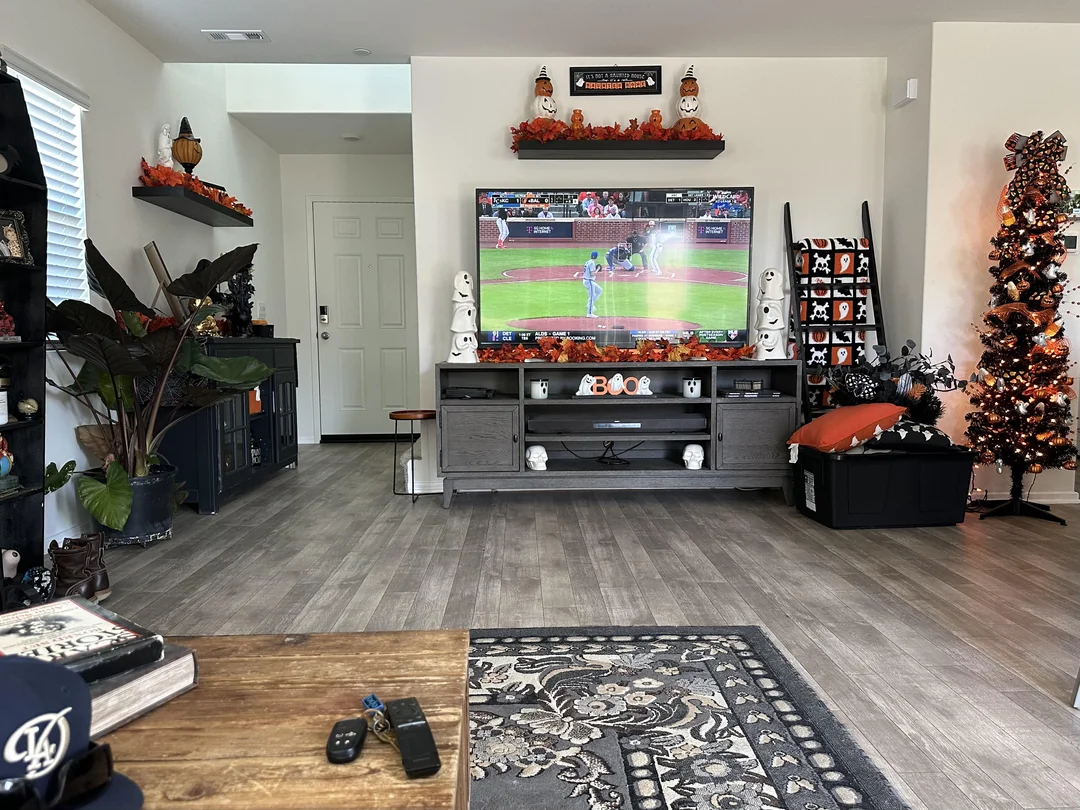
Picture the screen you sit in front of after dinner. That is the device to plan for. A bedroom tablet or a phone on the go can come later, with the same login, once the main screen works.
- Smart TV: look at the TV-based players first.
- TV box or Fire TV Stick: you have the widest choice.
- Apple TV, iPhone or iPad: check what the store offers on your model.
- Phone, tablet or PC: handy as a second screen and for testing your access.
IBO Player and Smart IPTV are the usual routes. Both identify the TV by its MAC address and ask for a licence.
Then: read our IBO Player guide before paying anythingTiviMate suits a classic guide-first evening. IPTV Smarters Pro and XCIPTV are good alternatives.
Then: open the TiviMate guideTiviMate, IPTV Smarters Pro and XCIPTV are the common picks. Storage on a stick is small, so keep one player, not three.
Then: see our Firestick device guideOn iPhone and iPad, search the store for IPTV Smarters Pro or GSE Smart IPTV. On Apple TV, search for GSE Smart IPTV.
Then: see our Apple TV device guideEach device family has its own page with the full setup path: IPTV on smart TVs, IPTV on an Android TV box, IPTV on Firestick and IPTV on Apple TV. The overview of every supported screen sits on our devices page.
Five questions that narrow the choice
There is no single best player. There is the player that fits your screen, your habits and the people you live with. Answer these five in order. By the end you usually have one or two names left.
- Question 1
Which device will carry most of the viewing
The answer removes half the list straight away. A player that does not exist on your device is not an option, however good it looks on someone else’s.
- Question 2
How much you rely on the TV guide
If you flick through live channels like a classic cable box, you want a full grid guide. If you mostly start series and movies on demand, a simpler menu does the job.
- Question 3
Which login format you prefer
Xtream Codes means three fields. M3U means one long link. Players that accept both give you a fallback if one route stalls.
- Question 4
Whether you will pay a publisher licence
Some players are paid, some sell extra features, some ask nothing. That decision sits between you and the publisher, outside your Northline IPTV order.
- Question 5
Who else in the home will use it
Large text, a simple remote layout and clear favourites matter more than features nobody opens. Ask the least technical person at home to try it.
Whatever you choose, the content stays the same. Every pack on our plans page works with all six players. You are choosing a layout and a way of browsing, not a catalogue. That also means a wrong first choice costs very little: you add your login to another player and carry on.
Xtream Codes or M3U inside your IPTV app
Your welcome e-mail gives you your access in two formats. You only need one of them in a given player. Here is how they compare in daily use.
Xtream Codes: three fields
- Server URL, username and password, typed separately.
- Usually loads faster on a large catalogue.
- Splits live TV, series and movies into separate sections.
- Our first recommendation whenever a player offers it.
M3U: one link
- A single long address that already holds your username and password.
- Accepted by almost every player, including TV-based ones.
- Can take longer to load on older phones, sticks and televisions.
- Must be kept as private as a password.
The two formats point to the same pack. Choosing one over the other never changes what you can watch. It changes how fast the list loads and how neatly it is sorted. If a player sits on its loading screen for a long time with the M3U link, remove that profile and try Xtream Codes instead.
For a field-by-field explanation, read our Xtream Codes setup guide. For the playlist route, including tips for large lists on older devices, read our M3U playlist guide. Both are written for any player, not just one.
Licences and paid features: our rules
This is the topic that causes the most confusion, so here it is in policy form. Each rule is short. The note under it says what it means for you.
The licence rules we apply
Rule 1. Your order covers content and support. Live channels, series, movies and our help 7 days a week by e-mail and WhatsApp, in English and French.
Rule 2. Your order never covers a player licence. If an app asks you to activate, unlock or upgrade, that payment goes to its publisher.
Rule 3. We never sell, resell or activate a licence. We have no access to any publisher’s accounts.
Rule 4. We never quote a licence price. Check the current price on the app’s official website.
What this means for you: before you pay a publisher, compare the licence with how long you plan to use that app on that device. A licence tied to one television is a different decision from a feature unlock on a box you might replace. If you already own a licence for a player, you can usually keep using it with our login. If you change players later, your subscription with us stays exactly as it is.
Never buy an “unlocked” app. If someone offers a modified player, a code that unlocks paid features, or an app file sent by message, say no. Install players only from your device’s official app store, and buy any licence only through the publisher. Unofficial copies can expose your device and your login, and we cannot support them.
A note on legality, because people ask. The technology is legal; whether a service is legal depends on the broadcasting rights it holds, so check before subscribing. That applies to any provider you consider, including us. Our questions to ask an IPTV provider help you put that question in writing.
Picked your player
Choose a pack and a duration of 1, 3, 6 or 12 months. You pay once, in Canadian dollars, and nothing renews by itself.
From order to first channel in any IPTV app
The route is the same for every player. Only the screens inside the app differ. Here it is from start to finish, with the habits that stop small mistakes from turning into a long evening.
- Choose your pack and duration. Pick a pack and 1, 3, 6 or 12 months. You pay once, in Canadian dollars, by card or PayPal. See current prices on the plans page.
- Watch your inbox. Your access is e-mailed within minutes. It holds a server URL, a username and a password, or an M3U link. Look in the spam folder if nothing shows.
- Install the player. Open your device’s official app store, search for the player by name and check that the publisher name matches the official app before you confirm.
- Add your login. Pick the Xtream Codes option if the player offers it. Otherwise paste the M3U link. Copy each detail exactly, with no space at the end.
- Let the first load finish. The catalogue is large, so the first load takes a moment. Do not close the app while it fills the categories and the guide.
- Set your favourites. Mark the channels and categories you use most. It saves a lot of scrolling for everyone at home.
If a step fails, resist the urge to repeat it ten times. Write down the exact message on screen, or take a photo, and send it to us with your device model and the player name. One clear message lets us check your account in a single pass. Our activation guide explains what happens on our side between your payment and the e-mail.
One connection, every IPTV app in the house
Each pack includes one simultaneous connection. You may add your login to the living room box, a phone, a tablet and a laptop. All four will accept it. What you cannot do is play on two of them at the same moment.
If a second device starts playing while the first is still on, one of them will fail or stop. That is not a fault in the app and not a fault in our service. It is the rule of the pack, and it applies whichever player you use, whichever device it runs on and whichever pack you hold.
A typical evening in a home with three screens
Picture a home with a box on the living room TV, a tablet in the kitchen and a phone. The same login sits in a player on all three. At dinner, someone watches the news on the tablet. Afterwards, the family moves to the living room. The tablet player is closed, the box starts a movie, and everything works. Later, a teenager opens the phone in another room while the movie is still running. The phone fails, or the movie stops. Nothing is broken; two screens simply asked for the one connection at once.
What this means for you: when you move from the living room to the bedroom, close the player on the first screen properly before starting the second. Pausing is not always enough; some players keep the stream open in the background. If a channel refuses to start for no visible reason, the first thing to check is whether another screen in the house is still playing.
Your login stays in your home. Your credentials are for your household only. Adding them to a player in another home breaks the one-connection rule and interrupts your own viewing. If you need more screens at the same time, write to us through the contact page. Support will explain the conditions and the price.
Speed, the player and the picture
No player can show more than your connection delivers. A good app makes the most of the bandwidth you have, but it cannot create bandwidth. Plan with these figures per screen, and add them up if others in the home stream, game or video-call at the same time.
Speed we recommend per screen
An example makes the sums concrete. If support has arranged a second simultaneous screen for your home, a 4K television and an HD tablet playing together need about 25 plus 10, so 35 Mbps, before anyone else in the house opens a video call. On a single connection, the figure for your one screen still has to sit on top of whatever the rest of the household uses at the same time.
Run a speed test on the device you plan to use, in the evening, when home networks are busiest. A result taken on a phone next to the router says little about a stick behind the TV two rooms away. If the device is on Wi-Fi, a 5 GHz connection close to the router or an Ethernet cable usually does more for the picture than any setting inside the app.
Some players let you choose between their own built-in video engine and another one installed on the device. Leave the default first. Switch only if one specific type of stream refuses to open, and switch back if nothing improves. Our buffering guide walks through the full list of checks, and our 4K quality page covers what a 4K screen really needs.
What each pack looks like inside a player
The player shows whatever your pack contains, sorted into live channels, series and movies. The bigger the pack, the longer the first load and the more you will want favourites and hidden groups. Here are the three packs with their published figures.
VIP Premium Pack
- 27,000+ channels
- 61,000+ series
- 155,000+ movies
- HD, Full HD and 4K
The catalogue includes French-language and international content. If you need a specific language, ask support before ordering; we would rather answer a question than sell you a pack that does not fit. The full breakdown of what each pack includes is on our what is included page.
What this means for you: on an older stick or television, a very large list can make the first load slow. That is a device limit, not a pack limit. Xtream Codes, a cleared cache and hidden groups usually bring it back to a comfortable pace.
Installing a player safely
The safest install is also the simplest one. Use the store that came with your device, check the publisher name, and refuse every shortcut. These habits protect the device your whole family uses every evening.
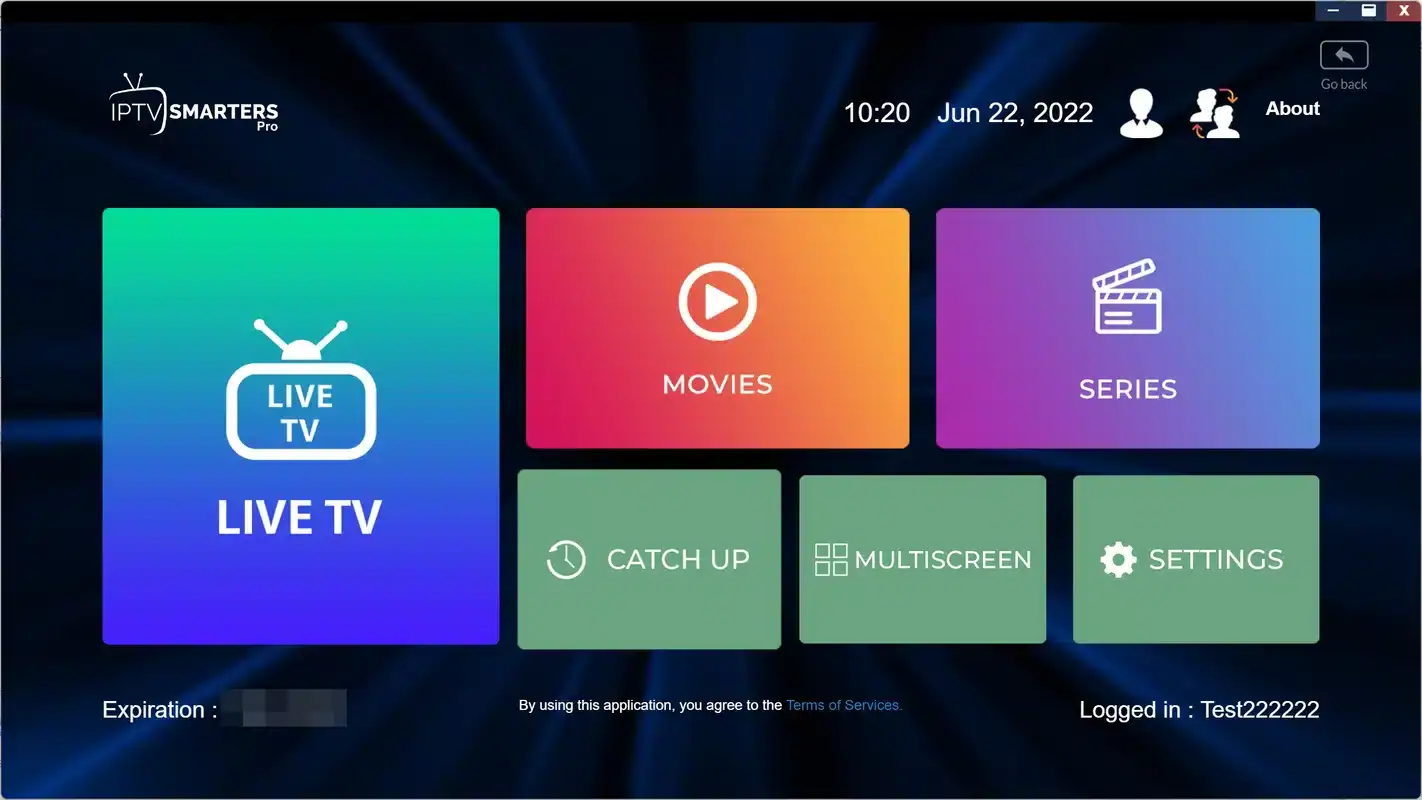
The safe-install checklist
Go through these points each time you set up a player on a new device. They take a minute and prevent most of the problems we see.
- The app comes from your device’s official app store.
- The publisher name in the listing matches the official app.
- The listing does not promise content inside the app.
- Your device software is up to date before you install.
- You type your login yourself, from your own welcome e-mail.
- No stranger has sent you a “better version” of the app.
If a player you want is not in your device’s store, that is the answer: choose another player that is. We never suggest workarounds, and we cannot support an app installed from anywhere else. If none of the six players appears on your device, write to us with the model name. We will tell you what we know and which supported device would be the simplest route.
Switching players without losing anything
Your subscription is not tied to a player. You can change apps on day one or halfway through a 12-month plan. Nothing changes on our side, and you do not need to tell us.
- Install the new player. Same rule as always: official app store, publisher name checked.
- Add your login. Use the same details from your welcome e-mail. They work in every supported player.
- Test before you remove. Open a few live channels, a series and a movie in the new app.
- Close the old player. Make sure it is not still playing in the background, since that would use your one connection.
- Remove the old profile. Delete your login from the old app if you no longer use it, so nobody at home opens it by mistake.
Favourites and hidden groups usually live inside each app, so you will set them again in the new one. If you paid a licence for the old player, that licence stays with the old app and its publisher. It does not move with you, and we have no way to transfer it.
Keeping the app healthy between updates
Publishers update their players often. Most updates are harmless, but a few change menu names, move a setting or reset a preference. When that happens, the login itself usually survives. If it does not, add it again from your welcome e-mail; your details have not changed on our side.
On sticks and older boxes, the player stores a copy of the channel list and the guide to speed things up. Over months, that stored data can grow and slow the app down. Many players offer a way to clear it from their own settings, and every device lets you clear an app’s cache from its system menu. Clearing the cache keeps your login in most players; clearing all app data removes it, so keep the e-mail close before you try that.
Deep dive: a quick health routine once a month
Update the device software first, then the player. Restart the device fully, not just from standby. Open the player, refresh the playlist and the guide, and check that your favourites are still there. If the app feels slow, clear its cache and refresh again. Finally, run a speed test on the device in the evening and compare it with the figures for the quality you watch. Five small checks, done once a month, prevent most of the slow-down messages we receive.
When an IPTV app misbehaves: who to contact
Problems fall into a few patterns. Match yours to a card below. Each one tells you what to try and who can fix it if the first step does not.
Retype the username and password by hand. Some mail apps add a hidden space when you copy. Check the server URL character by character.
Then: send us a photo of the error messageAnother device in the home may be using your one connection. Close the player on every other screen.
Then: see our cannot-connect guideTry another channel in the same category, then a movie. If only one channel fails, tell us which one.
Then: see our black screen guideUpdate the app and the device, then restart both. Crashes after that are a matter for the publisher.
Then: contact the publisher through its official websiteThe full troubleshooting guides are on our help page, with step-by-step pages for a login that will not connect and a black screen. When you write to us, include the device model, the player, the pack and the exact message. That is enough for us to start checking straight away.
Terms you will meet in player menus
Player menus use a small set of words again and again. Knowing them makes any new app easier to read, even when the layout changes after an update.
- Player
- The app that reads your login and plays the stream. It holds no content of its own.
- Publisher
- The company that builds and maintains a player. Independent from Northline IPTV.
- Xtream Codes
- A login made of three fields: server URL, username and password.
- M3U
- A playlist link in one line. It contains your username and password, so keep it private.
- EPG
- The electronic programme guide, the grid of what is on now and next.
- MAC address
- An identifier of your device. TV-based players use it to attach your playlist to one television.
- Profile or user
- One set of login details saved in the player. You can usually keep several.
- Licence
- A payment to the publisher to use the app or its paid features. Never part of your order with us.
Our TV guide setup page goes deeper into the EPG, including why times can look shifted in Canada and how to correct them from the device time zone first.
Choosing an IPTV app: common mistakes
We see the same handful of mistakes in support messages. None of them is serious, and all of them are easy to avoid once you know them.
Installing three players at once
Start with one. Several players on one stick fill its storage and make it unclear which app has the problem.
Paying a licence before testing
Add your login and check that the app suits your screen before you buy anything from the publisher.
Leaving a second screen playing
A phone left on a channel in another room blocks the TV. Close the app, do not just lock the phone.
Fixing guide times in the app first
Set the device time zone correctly before touching the player’s time shift.
Blaming the app for a weak signal
Test speed on the device itself. A stick behind the TV can see far less than a phone by the router.
Copying a login with a hidden space
Type the details by hand if a paste fails. One invisible character is enough to block the login.
Pick the player for the person who watches most, test it for a few evenings, and only then decide whether a licence is worth it.
What we can check for you, and what we cannot
We want you watching, not reading error messages. Here is exactly what our support team can do when an IPTV app causes trouble, and where our reach stops.
We can
- Confirm that your login is active and correctly typed.
- Resend your access e-mail if it went missing.
- Tell you which login format to try in your player.
- Walk you through the usual settings, screen by screen.
- Suggest a player that suits your device.
We cannot
- Install an app on your device remotely.
- Sell, activate or transfer a publisher licence.
- Fix bugs inside a player or speed up its updates.
- Enter your playlist on a publisher’s website for you.
- Raise the one-connection limit without a request to support.
Support runs 7 days a week by e-mail and on WhatsApp at +33 6 44 65 43 13, in English and French. Our commitments as a provider set out how we handle every request, and the support page lists the ways to reach us.
Related guides for your IPTV app setup
Once your player is chosen, these pages cover the next steps: the login formats in detail, the guide, the plans and the questions worth asking any provider before you pay.
Not sure which player to try first
Tell us your device model before you order. We will tell you which player we would start with.
FAQ
Is the IPTV app included in my subscription?
No. Your subscription covers the content and our support. The app is made by an independent publisher. You install it from your device’s official app store, and some players charge their own licence.
Can I use more than one player with the same login?
Yes. You can add the same credentials to several apps and several devices in your home. You can only watch on one device at a time, because each pack includes one simultaneous connection.
Which app do you recommend for a smart TV?
On Samsung and LG televisions, IBO Player and Smart IPTV are the usual choices. Both use your TV’s MAC address. Read our IBO Player guide before you pay any licence.
Which app do you recommend for a TV box or Fire TV Stick?
TiviMate if you like a grid guide, IPTV Smarters Pro or XCIPTV if you prefer a simpler menu. All three accept Xtream Codes.
Why is the app empty when I open it?
That is normal. A player has no content of its own. It fills up once you add the Xtream Codes details or the M3U link from your welcome e-mail.
Do you sell licences for the players?
No. We are independent from app publishers. Any licence or paid feature is bought from the publisher. Check the current price on the app’s official website.
Do you help if the app itself crashes?
We help you check your login, your connection and the usual settings. If the app keeps crashing after that, the publisher is the right contact, since only they can fix their software.
Can I switch apps in the middle of my subscription?
Yes. Your subscription is not tied to a player. Add your login to the new app and remove it from the old one. Nothing changes on our side.
Should I use Xtream Codes or the M3U link?
Xtream Codes whenever the player offers it. It usually loads faster and sorts live TV, series and movies. Keep the M3U link for players that only accept a playlist.
Can I install a player that is not in my device’s store?
We do not recommend it and cannot support it. Choose one of the supported players available in your device’s official app store, or ask us which device would suit you better.