When you find IPTV not connecting, the app refusing your login, or a channel list that never loads, the cause is almost always one of three things. A detail was entered wrong, the access period has ended, or another screen is already using the pack. Less often, the device has no working internet, or the player app needs its own activation. This guide shows how a login works behind the screen, how to read each error message, how to check your details field by field, and what to send us if it still fails. What this means for you: in most cases, the message on your screen is enough to identify the cause before you touch a single setting.
This page is part of our help centre. If the app logs in but the picture keeps stopping, read the buffering guide. If it logs in but the screen stays dark, the black screen guide is the one you need.
IPTV not connecting: what the message tells you
Player apps word their errors in different ways, but the meaning behind them is usually the same. Find the message closest to yours in this table. The first fix is the one to try before anything else.
| Message or behaviour | Usual cause | First fix |
|---|---|---|
| “Invalid username or password” or “Authorization failed” | A typing error, an extra space or a wrong capital letter | Copy the details again from the welcome e-mail |
| “Account expired” or “Subscription ended” | The access period of 1, 3, 6 or 12 months has ended | Check your order date; order a new duration to continue |
| “Max connections reached” or a sudden cut while watching | Another screen is using the same login | Close the player fully on the other screen, wait a moment |
| “Server not found”, “Unable to connect” or endless loading | Wrong server URL, or no internet on the device | Check the URL, then open another app that uses the internet |
| Login accepted, but the channel list is empty | The list did not finish loading | Refresh the playlist in the app’s settings |
| “Activate this app” or a device code on screen | The player’s own activation with its publisher | Follow the app’s activation; it is separate from your access |
| It worked yesterday, nothing works today | Expiry, a change at home, or a second screen | Check the date, then the other screens, then the device’s internet |
Write down the exact wording on your screen, or take a photo. If you contact us, the message is the most useful thing you can send. It tells us in one line which of the three main causes we are looking at.
How a login works behind the screen
Understanding what happens when you press “Add user” or “Log in” makes every error easier to read. Your player goes through a short series of checks with our server. Each check can stop the process, and each one produces a different kind of message.
If the player cannot reach the server at all, you get a “server not found” style message, and the cause is the URL or the device’s internet. If the server answers but rejects the username or password, you get an invalid login message. If the details are right but the period has ended, you get an expiry message. If everything is right but another screen is already connected, you get a connection limit message or a cut. If all checks pass but the list does not appear, the problem is in the last step, loading the list.
What this means for you: each message points to one step in this chain. You do not need to check everything, only the step the message names.
One more detail helps. The checks always run in the same order. A player that says your access has expired has already reached the server and accepted your username and password, because the period is checked after the login. So an expiry message also tells you that your URL and details are correct. In the same way, a connection limit message tells you the details are right and the period is running. Each message rules out everything that comes before it in the chain, which is why reading it carefully saves so much time.
Your login details, field by field
Your access arrives by e-mail within minutes of your order. It comes in one of two forms. The Xtream Codes form has three parts: a server URL, a username and a password. The M3U form is a single long link that contains everything. Most players on TVs accept the Xtream Codes form, which is easier to enter with a remote.
The profile name is yours to choose. The three other fields must match the welcome e-mail exactly.
Server URL
Must be complete, from its first character to the port number if one is shown. A missing slash, colon or digit is enough to fail.
Username
Case matters. A capital letter typed in lower case is a different username. Watch for a space at the end.
Password
Same rules as the username. Look-alike characters, such as a zero and the letter O, are the usual traps.
Profile name
Only a label inside the app. It can be anything and never causes a login error.
If your player asks for an M3U link instead, paste the whole link in one go. Do not try to shorten it or retype part of it. Our setup pages explain both forms in more detail: the Xtream Codes setup guide walks through each field, and the M3U playlist guide covers apps that take a link.
Check your login details step by step
Most invalid login messages come from a small difference between what is in the e-mail and what is in the app. Follow these steps to rule that out completely.
- Find the right e-mail. Search your inbox and your spam or promotions folder for the message sent after your order. If you have several, use the most recent one.
- Copy, do not retype. Open the e-mail on a phone or computer. If the player runs on that device, copy and paste. If it runs on a TV, keep the e-mail open next to you and compare character by character.
- Check the server URL from start to end. Include the beginning and the port number if one is shown. Compare the last characters especially; they are the ones people miss.
- Check spaces and case. Delete any space before or after the username and password. Respect every capital letter.
- Delete old profiles. If the app still holds a profile from a previous order or an old test, remove it and create a new one. Some apps keep trying the old one first.
- Close the app fully and restart the device. Unplug it from the wall, wait a moment, plug it back in. Then log in again.
- Try the details in a second supported player. If they work there, the first app is the issue, not your access.
What this means for you: if these steps all check out and the message still says invalid login, the cause is not a typing error. Write to us with the message; we will check your access from our side.
Typing with a TV remote without errors
Entering a long server URL and a password with arrow keys is where most typing errors happen. The on-screen keyboard jumps, a letter repeats, a shift key stays on. These habits make it much easier.
Habits that prevent typing errors
- Enter one field at a time, then read it back on screen before moving on.
- Use the keyboard’s “show password” option if it has one.
- Check the shift or caps state before each capital letter.
- Watch for the pairs that look alike: zero and O, one and l, capital I and lower-case l.
- If the player offers a web or phone setup page, use it to paste instead of typing.
Some players and devices let you type with a phone instead of the remote, through a companion feature or a keyboard on the device’s own remote app. If yours does, use it. It turns the most error-prone step into a copy and paste.
When you have entered everything, read the three fields once more against the e-mail before pressing the button. It feels slow, but it is faster than a failed login and a second attempt. What this means for you: careful entry once is the best protection against an IPTV not connecting message that is only a typing slip.
The one-connection limit
Every pack includes 1 simultaneous connection. This rule sits behind a large share of the login problems we answer, so we explain it plainly.
You can install the same credentials on several devices: a living-room TV, a Fire TV Stick in the bedroom, a tablet. That is allowed. What is not possible is watching on two of them at the same moment. When a second device starts playing, the first may stop, or the second may be refused. What this means for you: if your access stopped the moment someone else in the home opened the app, it is the limit doing its job, not a fault.
The phone took the connection. Only one of the two can play.
Then: close the player fully on the phone, then play again on the TVAn app on another device may still hold the connection in the background.
Then: close the player on every device, or put them to sleep, and wait a momentYour login may be in use somewhere you did not expect, such as an old device still running.
Then: check every device, and write to us if it continuesIf your household needs more than one screen at the same time, ask through the contact page. Support will explain the conditions and the price for your situation. There is no automatic multi-screen option, so ask before you rely on two screens at once.
Switching from one screen to another cleanly
Moving from the living room to the bedroom is the most common moment for a connection error. The first device still holds the connection for a short while after you stop watching, and the second device asks for it too soon. A clean switch avoids that.
- On the first screen
Stop, then exit the player
Press stop, then leave the app properly. Pressing home on many devices leaves the player running in the background.
- If in doubt
Put the device to sleep
Sleep or power off releases the connection on devices that keep apps alive.
- Wait a moment
Let the server notice
The server needs a short time to see that the first connection has closed.
- On the second screen
Open the player and play
The connection is available again. Playback starts as usual.
Some players also have a setting to stop playback when the app goes to the background. If yours does, turn it on. It makes every switch cleaner, and it stops a forgotten tablet in a bag from holding your connection all evening.
One household, one login. Your credentials are for your home only. Sharing them with another household triggers the connection limit for everyone involved and can lead to the access being blocked. Keep them private. If you think someone outside your home has seen them, tell us and we will help.
IPTV not connecting after a device change
New TV, new box, or a phone you just reset? Your login itself does not change when you change devices. What changes is the app and how it is set up. Most problems after a device change come from one of four things.
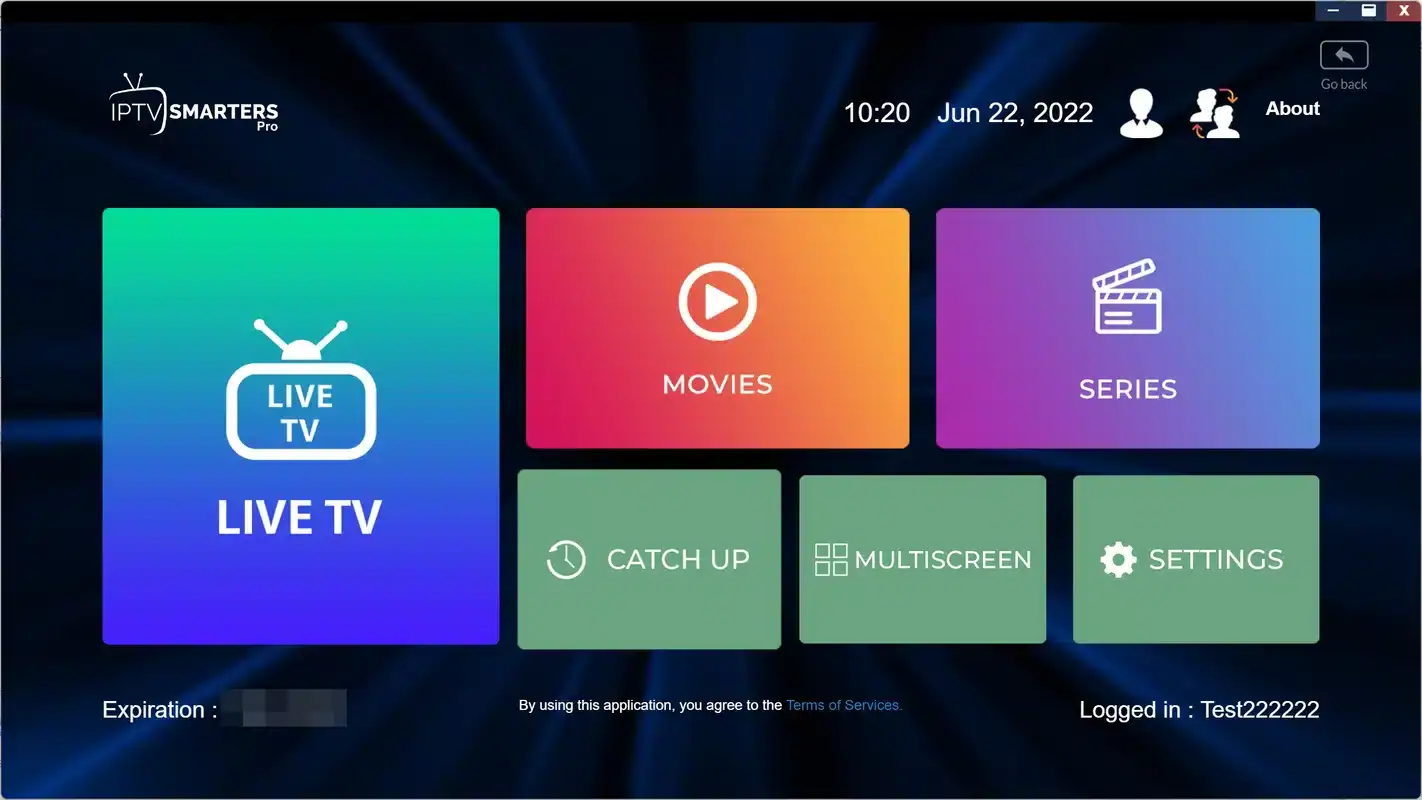
The four usual causes
- The player is not installed from the device’s official app store, or it is an older version.
- The player asks for its own activation with its publisher before it loads any list.
- The details were typed again from memory instead of copied from the e-mail.
- The old device is still on, with the player open, holding the only connection.
Install your player from your device’s official app store. Our access works with IPTV Smarters Pro, TiviMate, Smart IPTV, IBO Player, XCIPTV and GSE Smart IPTV. Not every player exists on every device, so pick one that is listed for yours. Our IPTV app guide shows which runs where, and the devices guide covers each supported family.
Then think about the old device. If it is still plugged in with the player open, it may be holding the only connection. Close the player there, or unplug the old device, before you test the new one. If you sold or gave away the old device, remove the player or reset it first, so your login does not leave the house with it.
Login quirks on each kind of device
The three main causes apply everywhere, but each device family adds its own small traps. If your login fails on one device and works on another, this table usually explains why.
| Device | Login trap to know | What to do |
|---|---|---|
| Samsung or LG smart TV | Some TV players tie their setup to the TV’s MAC address and ask for app activation first | Complete the player’s own step, then add your details |
| Android TV or Google TV box | Several players installed, each holding an old profile | Keep one player, delete old profiles, add a fresh one |
| Fire TV Stick | Pressing home leaves the player running and holding the connection | Exit the player properly or put the stick to sleep |
| Apple TV | Typing long fields with the small remote | Use the device’s phone keyboard feature to paste |
| iPhone, iPad, Android phone or tablet | Autocorrect or auto-capitalisation changing the username | Paste instead of typing, and check the first letter |
| PC | Security software blocking the player from reaching the server | Allow the player in the security software, then retry |
Phones deserve a special mention. Their keyboards try to help: they capitalise the first letter of a field, add a space after a word, or replace a username with a dictionary word. Each of those changes breaks the login. Pasting from the e-mail avoids all three. If you must type, turn autocorrect off for the moment, or check each field carefully before you press log in.
For a device-specific walk-through, see our guides to IPTV on smart TVs, IPTV on Firestick and IPTV on Apple TV. What this means for you: when a login works on one device and not on another, the device’s habits are a better suspect than your access.
Player activation is not your Northline access
Some players ask you to activate the app itself before it can load a playlist. They may show a device code, a MAC address or a message asking you to register the app on the publisher’s website. This step belongs to the app and its publisher, not to us.
Who handles what
Your Northline access: the server URL, username and password or M3U link in your welcome e-mail, your pack and your access period. That is ours. The player’s activation, licence, menus and updates: that belongs to the app’s publisher. We are independent from app publishers. For a player licence, check the current price on the app’s official website.
If the app shows an activation message, our access has not even been tried yet. Complete the app’s own step first, then enter your details. If the app asks for a licence and you would rather not buy one, another supported player on the same device may not need it; our IBO Player guide and IPTV Smarters Pro guide explain how each one is set up. What this means for you: an activation message is not a sign that your Northline login is wrong.
Xtream Codes or M3U when one works and the other does not
Both forms of your access open the same content. Sometimes one works in a player and the other does not. The reasons are usually practical, not a problem with the access itself.
| Point | Xtream Codes | M3U link |
|---|---|---|
| What you enter | Server URL, username, password | One long link |
| Easy to type on a TV | Yes, three short fields | No, the link is long |
| Easy to paste on a phone or PC | Yes | Yes |
| Typical failure | One field slightly wrong | Link cut short when copied |
| Same content | Yes | Yes |
| Same connection limit | Yes, 1 at a time | Yes, 1 at a time |
If the M3U link fails, check that it was copied in full, with nothing missing at the end. Some e-mail apps break long links over two lines; copy from the original message rather than a forwarded one. If Xtream Codes fails but the M3U link works in the same player, the problem is almost certainly one of the three fields, and the step-by-step check above will find it. If both fail on every player, the cause is the access or the connection, and you should write to us.
When your access has expired
Our packs run for 1, 3, 6 or 12 months. You pay once, in Canadian dollars, by card or PayPal. There is no contract and no automatic renewal. When the period ends, access simply stops. The player shows an expired message, or it refuses a login that worked the day before.
This design is deliberate. Nothing is charged without your action, and nothing continues on its own. The other side is that nothing reminds you either. If your access stopped on a date, after weeks of normal use, with nobody else watching, the period has most likely ended.
If you are not sure of the date, look for the order confirmation in your inbox; it shows the day you paid and the duration you chose. Count from there. If the dates do not match and your access stopped early, write to us with the confirmation, and we will check it from our side. Ordering again before you are sure is not needed, and it may leave you with two periods when you wanted one.
To continue, see current prices on the plans page and choose a new duration. If you liked your pack, you can order the same one again, such as the Premium Pack with 20,000+ channels, 24,000+ series and 100,000+ movies, or move to the VIP Premium Pack for a larger series library. New details arrive by e-mail within minutes. If they differ from the old ones, update the profile in your player or create a new one.
Note your end date. Since there is no automatic renewal, put a reminder in your calendar a few days before the period ends. It avoids a surprise in the middle of a film, and gives you time to decide which duration to order next.
Access ended and you want to continue
Choose a pack and a duration of 1, 3, 6 or 12 months. You pay once, and your details arrive by e-mail within minutes.
IPTV not connecting because the device is offline
A player that cannot reach the server often shows a vague message: “unable to connect”, “network error”, or a loading circle that never ends. Before you look at your details, check that the device itself is online.
Open another app on the same device that needs the internet, such as the app store or the device’s settings page that tests the network. If that app fails too, the issue is the device’s connection, not your access. Reconnect it to the Wi-Fi, or check the cable. If you recently changed your router, the device may still be looking for the old network name.
Two less obvious causes are worth knowing. First, the device’s date and time. If a device’s clock is far off, for example after a long time unplugged, secure connections can fail. Set the date and time to automatic in the device settings. Second, a guest or public network. Some networks in hotels, offices or shared buildings limit streaming apps. Test on your home network first.
Points to your access
- Other apps on the device work normally
- The message mentions username, password or account
- It stopped on a date with no change at home
- Another screen in the home is playing
Points to the device’s internet
- Other apps on the device also fail
- The message mentions network or server
- It started after a new router or a move
- The device’s clock shows the wrong date
What this means for you: two minutes with another app tell you which side of the problem to work on, and save you from re-entering correct details over and over.
The welcome e-mail never arrived
Your access is e-mailed within minutes of payment. If you do not see it, the cause is usually on the e-mail side, not the order. Work through these checks.
- Look in the spam, junk and promotions folders, and search for “Northline”.
- Check that you are looking in the inbox of the address you used at checkout.
- Look for a typo in that address in your order confirmation.
- If you paid with PayPal, check the address linked to your PayPal account too.
- Wait a few more minutes if you have just paid, then refresh the inbox.
Company and school e-mail systems sometimes hold messages with links and login details for a while before delivering them, or stop them altogether. If you ordered with a work or school address, look in its quarantine or held-messages area first, or ask the person who manages that mailbox. Personal inboxes usually receive the message more reliably, which is worth remembering for your next order.
If it is still missing, write to us from the e-mail address you used to order, or tell us that address on WhatsApp. We will resend the details. Our page on how activation works explains what happens between payment and the e-mail, step by step.
A worked example: the bedroom TV that says no
Here is how the checks on this page fit together in a real situation. It shows the order we would follow ourselves, and why each step comes where it does.
The situation. On a Saturday evening, the bedroom TV, a Fire TV Stick, shows “Max connections reached”. The living-room TV was used an hour earlier. Nobody else is watching, as far as anyone knows.
Step one: read the message. It names the connection limit, not the password or the period. So the details are right and the access is active. That removes two of the three main causes in one look.
Step two: find the other connection. The living-room TV runs its player as an app on the TV. It was switched off with the remote, which on that model only puts it to sleep with the app still in memory. A tablet in the kitchen also has the player installed, and it was left on a paused channel after lunch.
Step three: release it. Close the player on the tablet. Turn the living-room TV on, exit the player properly, and turn it off again. Wait a moment.
Step four: try again. The stick in the bedroom now plays.
What the example shows: the message did most of the work. Once it pointed to the connection limit, the only question was which device still held the connection. Nobody needed to retype a password or restart the router. If the tablet and the TV had both been off, the next step would have been to write to us, because a connection we cannot account for at home is something we want to look at.
The same reasoning applies to any message. Read it, let it remove the causes it rules out, and work only on the one that is left. What this means for you: most IPTV not connecting cases end in a few minutes once you stop treating every message as the same problem.
Keeping your login working month after month
Most login problems are avoidable with a few habits. None of them takes long, and together they remove the usual surprises.
- Keep the welcome e-mail in a folder you can find, and star or flag it.
- Note your access end date in your calendar, with a reminder a few days before.
- Give each device’s player a clear profile name, so you know which one to delete later.
- Teach everyone at home the rule: one screen plays at a time, and exit the player when you stop.
- Update the player from the official app store when an update is offered.
- When you replace a device, remove the player or reset the old one before it leaves the house.
- Never post your details in a forum, a group chat or a screenshot.
Deep dive: why old profiles cause new errors
Players save each login as a profile. When you order again after an access period ends, the new details may differ from the old ones. Some players open the last profile automatically when they start. If that profile holds the old details, you see an invalid or expired message even though your new access is active. Deleting the old profile, or editing it with the new details from your latest e-mail, removes the conflict. It is also why we ask in support messages whether the player holds more than one profile.
What this means for you: a well-kept e-mail, a calendar note and one rule for the household prevent most of the messages described on this page.
What to send support
If you checked everything and the login still fails, write to us. Include the items below so we can answer in one exchange rather than three.
- The e-mail address you used to order.
- The exact error message, or a photo of the screen.
- The device and the player app you use.
- Whether another device in the home uses the same login.
- Whether the login worked before, and when it stopped.
- Which steps of this guide you have already tried.
Send it through the contact page, by e-mail or on WhatsApp at +33 6 44 65 43 13. We answer 7 days a week, in English and French. Never post your password in a public place, such as a forum or a social network. In a private message to support, we may ask you to confirm details so we can find your access, but we never need your password to check it.
The message on your screen, word for word, is worth more than any description of what you tried.
What we can see from our side: whether your access is active, when it ends, and whether your login is connected from more than one place right now. What we cannot see: your device, your player’s settings or your Wi-Fi. That is why the message and the device matter so much in your first note.
Login words, explained
These terms appear in the welcome e-mail, in player menus and in our replies.
- Xtream Codes
- A login format with three parts: server URL, username and password. The easiest to enter on a TV.
- M3U link
- A single link that contains your whole access. Best pasted, not typed.
- Server URL
- The address of the server your player contacts. It must be entered in full, including any port number.
- Port
- The number after a colon at the end of some server addresses. Leaving it out is a common cause of failure.
- Simultaneous connection
- One stream playing at a given moment. Each pack includes one.
- Profile
- A saved login inside a player. Old profiles can conflict with new details.
- Access period
- The 1, 3, 6 or 12 months you paid for. It ends on its date and does not renew.
- Player activation
- A step some apps require with their own publisher. Separate from your Northline access.
Related guides
These pages answer the questions that often come up around a login problem.
Still refused after every check
Send us the exact message, your device and your player. Support answers by e-mail and WhatsApp, 7 days a week, in English and French.
FAQ
Can I use my login on my TV and my phone?
Yes, you can install it on both. You can only watch on one of them at a time, because each pack allows 1 simultaneous connection.
I never received my login e-mail. What should I do?
Check the spam and promotions folders and search for “Northline”. If it is not there, write to us from the address you used to order, and we will send the details again.
Why does the app say my account expired?
Your access period has probably ended. Packs run for 1, 3, 6 or 12 months with no automatic renewal. Order a new duration from the plans page to continue.
Why does it say the maximum number of connections is reached?
Another device is using the same login, sometimes in the background. Close the player fully on every other device, wait a moment and try again.
Is Xtream Codes better than the M3U link?
Both open the same content. Xtream Codes is easier to type on a TV. The M3U link is handy in apps that accept a playlist address, as long as you paste it in full.
The app asks me to activate it. Is my access wrong?
No. That is the player’s own activation with its publisher. Complete it first, then enter your Northline details. For a licence, check the current price on the app’s official website.
Can I get a second simultaneous screen?
Ask support through the contact page. They will explain the conditions and the price for your case. It is not included in the packs by default.
Does changing my router affect the login?
No. Your login is not tied to your router. Once the device is connected to the new network, the same details work as before.
Why did the login work yesterday and not today?
Check three things in order: whether the period ended today, whether another screen is playing, and whether the device has internet in another app. One of them is almost always the cause.
Do you need my password to check my access?
No. Send us the e-mail address you ordered with and the error message. Never post your password in a public place.