This guide shows you how to set up IPTV Smarters Pro with your Northline IPTV login, then how to live with it day to day. It covers what to prepare, the add-user screen field by field, the exact order of the setup, how typing differs on a phone and on a remote, the settings worth a look, and what to do when something does not load. Keep your welcome e-mail open while you work.
We are independent from the publisher of this app. We do not build it, we do not sell it and we do not control its updates. We use it regularly with our own test logins, so the steps below describe what you will actually see. If the publisher changes a screen and our steps no longer match, tell us and we will update this page.
What IPTV Smarters Pro is, and where it runs
IPTV Smarters Pro is a player. It has no channels of its own. It reads the details we send you and turns them into menus: live TV, movies, series and a TV guide. Its main strength is reach. The same app exists on most of the screens a Canadian home already owns, which means one layout and one way of working across the house.
Android phones and tablets
Handy for the kitchen, a bedroom without a TV, or checking your access in seconds.
iPhone and iPad
Search the official app store on your device and check the publisher name before you install.
Android TV boxes
A good living room option, especially with an Ethernet cable to the router.
Fire TV Stick
Compact and hidden behind the TV. Keep storage tidy and Wi-Fi strong.
On some platforms the publisher may ask for a purchase or offer paid options. If that happens, check the current price on the app’s official website. That payment is separate from your Northline IPTV order, and we never collect it.
What this means for you: if you already have the app from another time, you can reuse it. Add a new profile with your Northline IPTV details and leave the old one aside, or delete it once the new one works. Your old profile and its settings do not interfere with ours.
Who IPTV Smarters Pro suits best
Every player has a personality. This one favours clear sections and portability over a dense, cable-style guide. Here is an honest view of where it shines and where another player might suit you better.
A good fit if
- You want the same app on phone, tablet and TV box.
- You mostly open series and movies on demand.
- You like separate menus for live TV, movies and series.
- Several people at home will use their own device, one at a time.
- You want a quick way to check your access from a phone.
Consider another player if
- Your main screen is a Samsung or LG smart TV without a box.
- You browse live channels mainly through a full grid guide.
- Your stick is short on storage and already holds other players.
- You prefer adding your login on a website instead of on the device.
A word on expectations. IPTV Smarters Pro is a general-purpose player. It does many things reasonably well rather than one thing in great depth. For most homes that is exactly right: the person on the phone and the person on the living room box see the same menus, and nobody needs a lesson. If one member of the household lives in the live channel guide every evening, though, a guide-first player on the box may please them more, while the rest of the family keeps IPTV Smarters Pro on their own devices.
For a grid guide on a box or stick, read our TiviMate guide. For a Samsung or LG television, read our IBO Player guide. All six supported players are compared on our IPTV app page. You can switch at any time; your login works in all of them.
Preparing before you install IPTV Smarters Pro
A little preparation prevents most failed logins. Go through this list before you open the app. It takes a couple of minutes and removes the usual causes of a frustrating first attempt.

The preparation checklist
Tick each point. If one fails, fix it first; the app cannot work around it.
- Your welcome e-mail is open. It arrives within minutes of your order; look in the spam folder if needed.
- You know which details you received: server URL, username and password, or an M3U link.
- The device is connected to the internet, ideally by cable for a TV box.
- The device date and time are set automatically, so the guide lines up.
- No other device is playing with the same login right now.
Check your speed as well: about 10 Mbps for HD, 15 Mbps for Full HD and 25 Mbps for 4K, per screen. If you have not ordered yet, compare the packs on the plans page. The Premium Pack is a common first choice with this app: 20,000+ channels, 24,000+ series and 100,000+ movies in HD, Full HD and 4K.
The add-user screen, field by field
Everything happens on one screen. When you choose the Xtream Codes option, the app asks for four fields. Here is roughly what you will see, and what goes where. The exact labels can change slightly between versions.
An illustration of the add-user screen. Use only the values from your own welcome e-mail.
| Field | What to enter | Common mistake |
|---|---|---|
| Any name | A label you choose, such as “Northline” or “Living room” | Typing your username here instead of a label |
| Username | The username from your e-mail, exactly | A capital letter typed in lower case |
| Password | The password from your e-mail, exactly | A hidden space copied at the end |
| URL | The full server URL, including the beginning and any number after a colon | Dropping the part after the colon |
What this means for you: the name field is the only one where you choose the content yourself. The other three must match your e-mail character for character. If a login fails, it is almost always one of those three, and almost always one small character.
Setting up IPTV Smarters Pro with Xtream Codes
Xtream Codes is the login we recommend for this app. It loads quicker than a long playlist and keeps the sections tidy. Screen names can vary slightly between versions and devices, but the order stays the same.
- Install the app. Open your device’s official app store and search for IPTV Smarters Pro. Check that the publisher name matches the official app, then install it.
- Read the app’s own terms. On first launch the app may show its terms. These are the publisher’s terms, not ours. Read them and continue if you agree.
- Choose the Xtream Codes login. On the add-user screen, pick the option that mentions Xtream Codes API. Leave the playlist option for later.
- Name the profile. Type a label you will recognize. If you plan several profiles, make the name describe the device or the person.
- Enter your three details. Type the username, the password and the server URL exactly as they appear in your e-mail. Respect capitals and remove any trailing space.
- Add the user and wait. The app loads live TV, movies, series and the guide. Leave it alone until the home screen appears.
- Test, then add favourites. Open a live channel, a series and a movie. If all three play, your setup is done. Mark your favourites while you are there.
For a closer look at each of the three fields and the error messages they can produce, read our Xtream Codes setup guide. It is written for any player, so it also helps if you later add the same login to another app.
Typing your login on each kind of device
The fields are the same everywhere. How you fill them is not. A phone lets you paste. A remote control makes you hunt for letters on an on-screen keyboard. Plan the method that suits your device.
| Device | Easiest way to enter the login | Watch out for |
|---|---|---|
| Android phone or tablet | Copy from the e-mail, paste into each field | A space added at the end by the mail app |
| iPhone or iPad | Copy from the e-mail, paste into each field | Automatic capital on the first letter |
| Android TV box | On-screen keyboard with the remote, or a USB keyboard if the box has a port | Look-alike characters such as zero and O |
| Fire TV Stick | On-screen keyboard with the remote | Skipping a character while moving fast |
On a TV box or stick, type slowly and check each field before moving to the next. Keep the e-mail open on your phone, in large text, next to you on the sofa. If the box has a USB port and you own a keyboard, plugging it in turns a long job into a short one.
A careful method for the remote control
Typing with a remote is slow, and speed causes mistakes. Use a rhythm: read a group of four characters on your phone, type them, then check them on the TV before moving on. When you reach a dot, a slash or a colon in the server URL, look for it on the symbols page of the on-screen keyboard rather than guessing. Before you press the button to add the user, read each field once more against the e-mail, out loud if it helps. It takes an extra minute and saves a second attempt.
On a phone or tablet, the risk is the opposite: pasting is quick, but some mail apps add an invisible space or turn the first letter into a capital. If a pasted login fails, delete the field and type it by hand. That single change fixes a surprising share of the “invalid login” messages we see.
Using the M3U link instead
Some people only have the M3U link at hand, or prefer one paste instead of three fields. That works too. On the add-user screen, choose the playlist or M3U URL option, give the profile a name and paste the whole link in one go.
Treat the link like a password
The M3U link already contains your username and password. Do not post it, do not send it to friends, and do not save it in a shared note or a family chat. Anyone with the link can use your one connection, which stops your own viewing.
What this means for you: with a large catalogue, an M3U playlist can take longer to load on older phones and boxes. If the app stalls on the loading screen, delete that profile and add the Xtream Codes details instead. The content is the same either way; only the loading behaviour and the sorting change.
When M3U is the better route
M3U makes sense in two cases. First, when your version of the app does not show an Xtream Codes option on the add-user screen, which can happen on some platforms or after an update. Second, when you are setting up a phone quickly and only have the link at hand, for instance in a message you sent yourself. In every other case, start with Xtream Codes and keep the M3U link as your backup plan.
Our M3U playlist guide explains when the link is the better choice, how to paste it without breaking it, and how to keep large lists manageable on older devices.
A tour of the IPTV Smarters Pro home screen
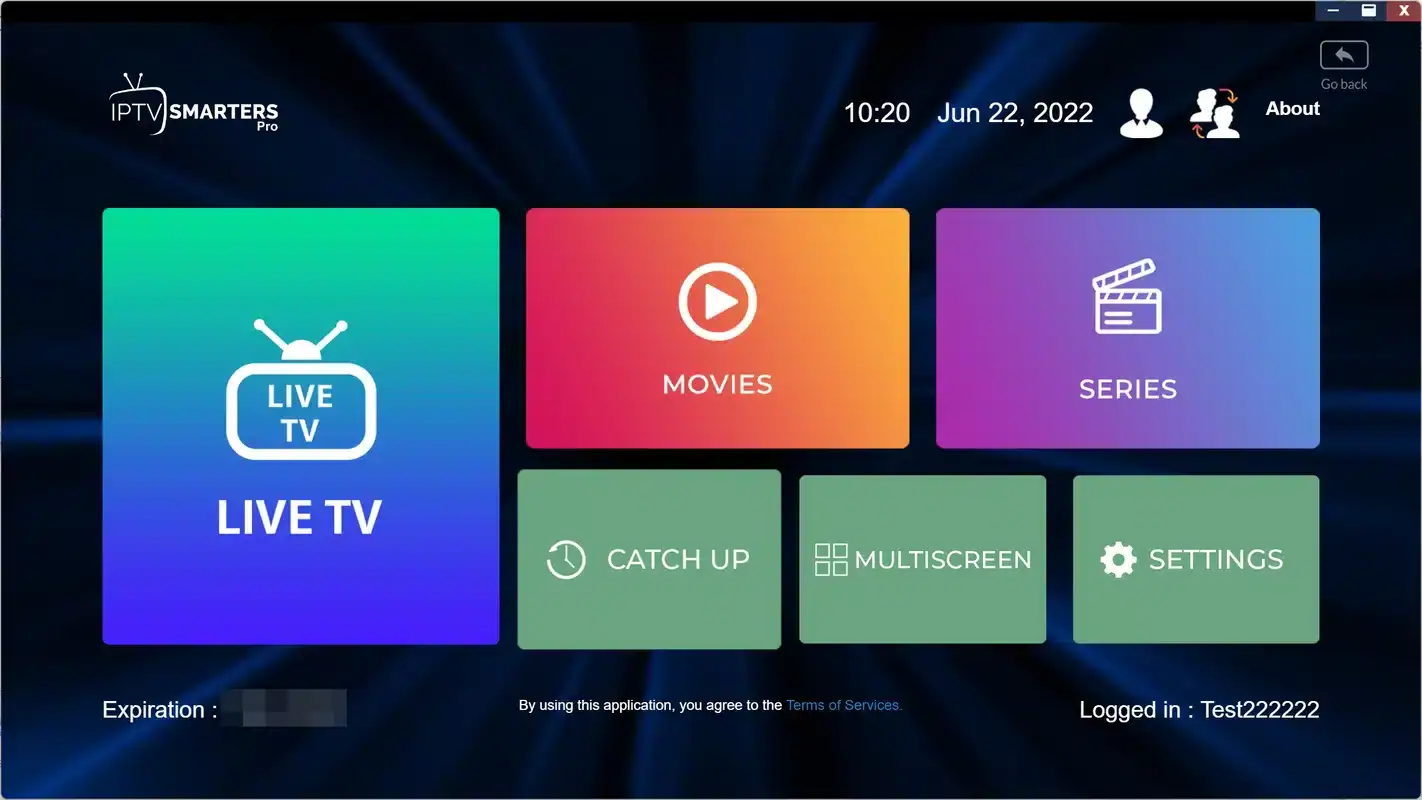
Once the profile loads, the home screen splits your pack into a few large tiles. Each one opens its own part of the catalogue. Knowing what lives where saves a lot of wandering through menus.
Live TV
Channels sorted into categories. Pick a category on the left, a channel on the right.
Movies
The on-demand film catalogue, grouped into categories you can browse or search.
Series
Shows with their seasons and episodes, opened from a cover picture.
TV guide
What is on now and next, when the guide data has loaded for that channel.
Favourites
Your shortlist. Fill it on day one and the rest of the catalogue can stay out of the way.
Settings
Player choice, guide refresh, time shift and parental control, among others.
With a large pack, the search function is your friend. Typing a few letters of a title in Movies or Series is faster than scrolling through categories. In Live TV, favourites do the same job: once a channel is marked, it is one click away from the home screen.
IPTV Smarters Pro settings worth checking
You do not need to change anything for the app to work. A few settings make daily use smoother, though. Names may differ slightly between versions and devices, and some may sit in a sub-menu.
| Setting | What it does | Our advice |
|---|---|---|
| Player choice | Picks the built-in player or another one installed on the device | Keep the built-in player first. Try another only if a stream refuses to open. |
| Stream format | Changes how the app requests live streams | Leave the default. Switch only if live channels stutter while movies play well. |
| TV guide refresh | Reloads programme information | Refresh after setup and whenever the guide looks empty. |
| Guide time shift | Moves programme times forward or back | Use it only if every programme is off by the same amount, after checking the device time zone. |
| Parental control | Locks chosen categories with a code | Set it up if children use the device. |
Player choice, explained simply
Inside the app, “player” means the engine that decodes the video, not the app itself. IPTV Smarters Pro has its own built-in engine and, on some devices, can hand the stream to another video app you already have. The built-in engine is the one we test with and the one we recommend. Switching makes sense only when one particular stream refuses to open in the built-in engine while others play normally. If switching does not help, switch back, so you are not left with a setup that differs from the one in our guides.
Change one setting at a time and test after each change. If two settings are changed together and things get worse, you will not know which one caused it. If you are lost, deleting the profile and adding it again brings the app back to its defaults for that login.
Profiles: one app, several labels
IPTV Smarters Pro can hold more than one profile. Each profile is a saved login with its own name. That is useful in a few situations, and it is easy to misunderstand in one.
Profiles are labels, not extra connections. Adding the same login three times, under three names, does not give you three screens. It gives you three shortcuts to the same single connection. Where profiles help is in keeping things clear: a profile per device makes it obvious which screen you are on when you call us, and a separate profile for a renewed login lets you test the new details before deleting the old ones.
Profiles also help when two people in the home have their own preferences. One profile can hold one set of favourites, another profile a different set, on the same tablet. They still share the one connection, so they cannot play at the same moment, but each person finds their own shortlist without scrolling through someone else’s.
What this means for you: name each profile after the device or the room. When support asks “which profile did you use”, you will know the answer at once.
Set up once, watch everywhere at home
Pick a pack and a duration of 1, 3, 6 or 12 months. You pay once in Canadian dollars, with no automatic renewal.
Using IPTV Smarters Pro on several devices at home
The same login works on every device where you install the app. That is the main reason households pick IPTV Smarters Pro. The rule that comes with it is simple: one pack, one screen playing at a time.
How a shared home works in practice
Install the app on each device you want, add the same details, and agree on a simple habit: close the app on one screen before opening it on another.
- Close the app fully, do not just lock the phone.
- Check that the TV box is not still playing in the background.
- Name each profile after its room.
- Ask support if you need two screens at once.
Do not share your login outside your home. Your credentials belong to your household only. Using them in another home breaks the one-connection rule and cuts your own viewing. If you need more screens at the same time, ask our support team through the contact page: they will explain the conditions and the price.
A phone is also the fastest diagnostic tool you own. If a channel refuses to play on the TV box, close the box, open the same channel on your phone over the same Wi-Fi. If it plays on the phone, your login and the channel are working; the problem is on the box or its connection. If it fails on both, write to us with the channel name.
Speed per screen with IPTV Smarters Pro
The app plays whatever your connection can carry. Plan with these figures for the screen in use, and add the needs of anyone else in the home who streams, games or makes video calls at the same time.
Recommended speed per screen
Phones and tablets usually sit close to the router and cope well. Sticks and boxes behind a TV are where trouble starts. For a box, an Ethernet cable is the most effective upgrade available. For a stick, keep it in the open, connect it to the 5 GHz band if the router is near, and fall back to 2.4 GHz only if the 5 GHz signal drops at that distance.
Remember that the figures are per screen, on top of everything else in the house. If someone is on a video call in the next room and another person is updating a games console, the stick behind the TV competes with both. During a busy evening, the Full HD version of a channel often looks better in practice than a 4K stream that keeps pausing. Test at the time you actually watch, not on a quiet morning.
If a 4K channel stutters while HD plays well, the connection to that screen is under the 4K figure at that moment. Pick the Full HD version of the channel while you check the network. Our buffering guide lists every check in order, and our 4K quality page explains what a 4K screen needs beyond speed.
Keeping the guide accurate
An empty or shifted TV guide is one of the most common questions about this app. It is rarely a problem with your login. It is usually the device clock or a guide that has not refreshed yet. Work through these checks in order.
- Check 1
Device date and time
Set them to automatic in the device’s own settings. A wrong clock shifts every programme.
- Check 2
Device time zone
Canada spans several time zones. Make sure the device uses yours, not a default.
- Check 3
Guide refresh
Refresh the guide from the app’s settings and wait a few minutes for it to fill.
- Check 4
App time shift
Only if every programme is still off by the same amount, adjust the app’s guide time shift.
Some channels may show no programme information at all. That depends on the guide data available for that channel, not on your settings. If a channel you watch often has an empty guide, tell us its name and category. Our TV guide setup page explains the time zone side in more detail.
Family settings: favourites and parental control
A large pack is a lot to browse with a remote, especially for younger or less technical viewers. Ten minutes of setup makes the app friendlier for everyone in the home.
Favourites first. Sit down with the people who watch most and build a short list together. Ten to twenty channels usually cover a household’s evenings. The rest of the catalogue stays one menu away when someone wants to explore.
Parental control next. If children use a device, set a code in the parental control settings and lock the categories they should not open. Choose a code that is not a birthday or a simple sequence, and do not write it on a sticky note next to the TV.
One profile per device. If a child has a tablet, give it its own profile name. That way, when you lock categories on the tablet, you know exactly which device you changed.
Revisit the setup now and then. Tastes change and children grow. Every few months, look at the favourites list and the locked categories together, remove what nobody uses and adjust the locks. It keeps the app tidy and avoids the moment when a locked category blocks something a teenager now legitimately wants to watch.
A short favourites list does more for a family evening than any setting hidden in the menus.
A first session with IPTV Smarters Pro on a Fire TV Stick
Here is what a smooth first session looks like on the device that gives people the most trouble with typing: a Fire TV Stick with its small remote. Read it once as a rehearsal. On a phone, the same session is shorter, because you can paste.
The welcome e-mail arrives a few minutes after your payment. You open it on your phone, zoom in so the text is large, and put the phone on the arm of the sofa. On the stick, you open the official app store, search for IPTV Smarters Pro, check the publisher name and install it. The app opens and shows the publisher’s terms. You read them and continue.
On the add-user screen, you pick the Xtream Codes option. In the name field you type “Living room”. Then you move to the username field and type it slowly, glancing at the phone after every few characters. You do the same for the password, paying attention to capitals. The server URL comes last, because it is the longest; you check the part after the colon twice. You press the button to add the user.
The app shows a loading screen while it fetches live TV, movies, series and the guide. You leave the remote on the table. When the home screen appears, you open Live TV, pick a category and start a channel. It plays. You open a movie, then an episode of a series. Both play. You spend the next few minutes marking favourites, then refresh the guide from the settings so the programme grid fills in.
If your session goes differently, stop at the step where it changed. Take a photo of the screen with your phone and send it to us with the device model and the profile name. We check your login on our side and tell you whether the issue is a typing error, a connection problem or something in the app itself.
When IPTV Smarters Pro does not load
Most problems come from one of three causes: a typing mistake, a second device already playing, or a slow connection. Match your symptom to a card below and follow the advice in order.
Retype the username and password by hand. Check the server URL character by character, including any number after a colon.
Then: see our cannot-connect guideMake sure no other device is using the same login. Close the app on every other screen completely.
Then: try again on one screen onlyA long M3U list may be too heavy for the device. Delete the profile and add Xtream Codes instead.
Then: give the first load time to finishCompare your speed with the figures above. Move the device to cable or 5 GHz Wi-Fi.
Then: see our buffering guideTry another channel in the same category and a movie. If only one fails, note its name.
Then: see our black screen guideUpdate the app and the device, then restart the device fully.
Then: contact the publisher if it continuesThe full guides live on our help page: IPTV not connecting, IPTV black screen and IPTV buffering. When you write to us, send the device model, the profile name, the exact error message and the time it happened.
Updates, reinstalls and moving to a new device
Publishers update their apps regularly. Most updates change nothing you would notice. A few move a menu, rename a setting or, now and then, ask you to log in again. Your details have not changed on our side; add them again from the welcome e-mail.
- Keep the e-mail safe. Store your welcome e-mail in a folder you can find. It is your key for every reinstall.
- Update the device first. Install system updates before updating the app. Older system software can block newer app versions.
- Clear the cache if the app slows down. Use the device’s app settings. Clearing the cache usually keeps your profile; clearing all data removes it.
- On a new device, start fresh. Install from the official store, add your login, test, then remove the profile from the old device if you no longer use it.
When an update changes something that our guide describes, the steps on this page may briefly fall behind the app. The logic does not change: choose the Xtream Codes option, fill the three fields from your e-mail, add the user, wait for the load. If a label has moved, look for the closest match and let us know what you found, so the next reader gets the updated wording.
Deep dive: why a renewed login sometimes needs a new profile
When you renew your plan with us, your login details usually stay the same and the existing profile simply starts working again. If we ever send you new details, do not edit the old profile field by field. Add a new profile with the new details, test it, and delete the old one once the new one plays. Editing in place can leave an old guide or an old list stored in the app, which makes the new login look broken when it is not.
Choosing a pack for IPTV Smarters Pro
All three packs work with this app. The difference is how much you will find inside the menus. Bigger catalogues take a little longer to load the first time and reward a tidy favourites list.
The duration matters as much as the pack. A 1-month IPTV subscription is a calm way to check that the app suits every device in your home before committing longer. A 12-month IPTV subscription gives the lowest cost per month once you know the setup works. Whatever you choose, nothing renews by itself: when the duration ends, you decide whether to continue.
The catalogue includes French-language and international content. If you need a specific language, ask support before ordering. Each pack includes one simultaneous connection and is paid once, by card or PayPal, in Canadian dollars. See current prices on the plans page; our IPTV subscription price page explains how prices are set.
More guides for IPTV Smarters Pro users
These pages continue where this guide stops: other players, your device, the login formats and how we work as a provider.
Login refused or app stuck
Send us the device model, the profile name and the exact message. We reply 7 days a week by e-mail and WhatsApp.
FAQ
Is IPTV Smarters Pro made by Northline IPTV?
No. It is made by an independent publisher. We test our login details with it and write this guide, but we do not control the app or its updates.
Do I have to pay for IPTV Smarters Pro?
It depends on the platform. If the publisher asks for a payment, check the current price on the app’s official website. It is never included in your Northline IPTV order.
Should I use Xtream Codes or M3U in this app?
Xtream Codes, when you have it. It loads faster and sorts the content into clear sections. M3U is a good backup if the Xtream option is not available on your version.
Can I install it on my phone and my TV box?
Yes. Use the same login on both. You can watch on one device at a time, since each pack includes one simultaneous connection.
Do several profiles give me several screens?
No. Profiles are saved logins with different names. They all share the one connection of your pack. For more screens at once, ask support.
The TV guide is empty. What should I do?
Refresh the guide from the app’s settings, then wait a few minutes. Check that your device time and time zone are set correctly. If it stays empty, write to us with your device model.
Why does my pasted password not work?
Some mail apps add an invisible space or a capital letter when you copy. Delete the field and type the password by hand.
Does the app work in French?
The app menus follow the publisher’s language options. Our support answers in English and French, 7 days a week, by e-mail and WhatsApp.
I renewed my plan. Do I need to set the app up again?
Usually not. If your details are unchanged, the existing profile works again. If you received new details, add a new profile, test it, then delete the old one.
Can I use parental control in IPTV Smarters Pro?
Yes, the app offers a parental control setting that locks chosen categories with a code. Set it on each device children use.