This page describes IPTV activation at Northline IPTV from start to finish: the order, the access e-mail, the first login and the first channel on your screen. It explains what we do on our side, what you do on yours, and what happens at each handover. It also covers the cases that do not go to plan, such as a missing e-mail, a refused login or a second screen that will not start.
We write it as a set of rules and expectations, because that is what activation really is. There is no technician, no box in the post and no waiting list. There is a payment, a message and a few fields to fill in. When each part is clear, activation is quick. When one part is unclear, it is usually the reason a working subscription looks broken. For the wider picture of the service, read the service overview first.
Our rule on activation: access is sent by e-mail within minutes of a confirmed payment. If it does not reach you, support resends it or corrects the address, 7 days a week. You never need to place a second order to receive the first one.
IPTV activation at a glance
Activation is a short chain of four links. Each link has one owner. If you know who owns each one, you always know where to look when something stops.
The first link is yours: you choose a pack and a duration, then pay. The second link is ours: we create your access and send it. The third link belongs to the app publisher, an independent company whose player you install. The fourth link is your home: the device, the Wi-Fi or cable, and the internet line. Activation is complete when all four links hold at the same time.
What this means for you: activation is not a single button. It is a sequence. Most delays come from a gap between two links, for example an e-mail that arrived but sits in a spam folder, or a login that is correct but typed into a player that was never fully installed. The sections below take each gap in turn.
Who does what during activation
We like to put responsibilities in writing. It avoids the frustrating moment where everyone waits for someone else. Here is the split, stage by stage.
| Stage | Your part | Our part | What can slow it down |
|---|---|---|---|
| Order | Pick a pack and a duration, type a working e-mail address, pay by card or PayPal | Show the packs and durations clearly, take one payment in Canadian dollars | A typing error in the e-mail address |
| Access sent | Watch your inbox and spam folder | Create your access and e-mail it within minutes | Filters that move automated mail out of the inbox |
| Player installed | Install a supported player from your device’s official app store | Explain which players accept our login formats | An app that asks for a publisher licence |
| Login entered | Copy the details exactly, with no extra space | Check the status of your access if the login fails | One wrong character, a missing port in the server URL |
| First channel | Give the player time to load, test a few channels | Answer questions 7 days a week | A slow or busy home connection |
Notice that the slow points are almost all small. None of them needs a technician. Most of them need a second look at something you already have in front of you.
What this means for you: when you write to support about activation, tell us which stage you reached. “I paid but have no e-mail” and “I have the e-mail but the app refuses it” are two very different cases, and naming the stage gets you the right answer first time.
Before you order: getting your home ready
Because your period starts when the access is sent, a little preparation pays off. Ten minutes of checking before you pay means you use the whole period, not a period minus the evening you spent finding the right app.
Your pre-order list
Go through these points on the device you plan to use most. If one of them fails, sort it out first or ask us before you order.
- The device is on our list: Samsung or LG smart TV, Android TV or Google TV box, Fire TV Stick, Apple TV, iPhone or iPad, Android phone or tablet, or PC.
- A supported player is available in that device’s official app store.
- You know whether the player asks for a licence from its publisher.
- Your e-mail inbox is open on a phone or computer near the TV.
- The connection carries 10 Mbps for HD, 15 Mbps for Full HD or 25 Mbps for 4K on that screen.
The player question deserves a moment. We are independent from app publishers. Some players are ready to use as soon as they are installed. Others, especially on smart TVs, ask for a licence from the publisher before they show your content. If your player does, check the current price on the app’s official website before you order, so the licence does not become a surprise in the middle of activation.
If you are not sure which player suits your device, the apps overview sorts them by screen type. For the devices themselves, the devices section has one guide per family.
Choosing a pack and a duration with activation in mind
Activation works the same way for every pack and every duration. The steps, the e-mail and the login formats do not change. What changes is how much the player has to load the first time, and how long your access lasts.
VIP Premium Pack
- 27,000+ channels
- 61,000+ series
- 155,000+ movies
- HD, Full HD, 4K
Ultimate 4K Pack
- 57,000+ 4K channels
- 47,000+ series
- 179,000+ movies
- 20 servers in Europe
A larger catalogue means a longer first load on a small device. That is not a fault; the player is simply reading more. If your device is older, or if it is a stick with limited memory, factor that in. You can still choose any pack, but expect the first evening to include a few minutes of patience.
On duration, the logic is simple. A short duration is a low-commitment way to check that activation, your device and your connection all work together. A longer one means fewer re-orders. Neither one renews by itself. The 1-month plan and the 12-month plan pages explain who each one suits, and current prices for every combination are on the plans page.
What this means for you: choose the pack for your screen and your viewing habits. Choose the duration for how sure you are. Activation itself will be identical whatever you pick.
The IPTV activation steps, in order
This is the full route from the first click to the first channel. Follow it in order. Each step depends on the one before it.
- Pick your pack. Premium, VIP Premium or Ultimate 4K. The figures above are the ones we publish and stand behind.
- Pick your duration. 1, 3, 6 or 12 months. The catalogue is the same whatever the length.
- Type your e-mail address carefully. This is where your access will go. Read it back once before you continue.
- Pay once. Card or PayPal, in Canadian dollars, one time only. The payment guide covers both methods.
- Open your inbox. Your access e-mail arrives within minutes. Check the spam or promotions folder if it is not in the main view.
- Open your player. Choose the option to add an account, a user or a playlist.
- Enter your details. Copy the Xtream Codes fields, or paste the M3U link, exactly as written.
- Let it load, then test. Wait until the categories appear. Open a live channel, a series and a movie.
Steps one to four take place on our website. Step five is the handover. Steps six to eight take place on your device, inside an app we do not make. That split is why the second half of this page spends more time on the player than on the order.
- At checkout
Payment confirmed
Your order is recorded and your access is created.
- Within minutes
Access e-mail sent
Your period starts from this moment.
- Same evening
Login entered
The player reads your catalogue and builds its menus.
- First test
Channel on screen
Activation is complete. You use the rest of the period as you like.
At checkout: the details that shape activation
Most of the checkout is routine, but two fields have a direct effect on activation: the e-mail address and the pack you add to the basket. Everything else is about payment.
A simplified view of the checkout. The e-mail field decides where your access goes.
The e-mail address is the single most important field for activation. A missing letter or a wrong domain ending sends your access to an inbox that does not exist, or worse, to someone else’s. Use an address you can open on your phone, because you will want to copy details from it while you stand in front of the TV.
Check the basket before you pay. If you meant to order the VIP Premium Pack for 6 months, make sure that is what the summary shows. The pack in the basket is the pack your access is created for. If you notice a mistake after paying, write to support straight away rather than placing a second order.
Payment and activation
We take one payment in Canadian dollars. Nothing is stored to charge you again, because nothing renews. When your period ends, your access simply stops, and you decide whether to place a new order. The price page explains what the payment covers and what it does not.
What your access e-mail contains
The access e-mail is the hinge of activation. Everything before it happens on our side, everything after it on yours. It contains your login in one or both of the two formats that players understand.
| Format | What you receive | How you enter it | When to use it |
|---|---|---|---|
| Xtream Codes | Server URL, username and password | Three fields in the player | Whenever the player offers it; menus are usually tidier |
| M3U link | One long playlist address | One paste, in the app or on the publisher’s site | Players that accept only a playlist link |
Both formats open exactly the same content. The difference is only in how the player reads it. Xtream Codes lets the player load live channels, series and movies section by section. An M3U link hands over the whole list at once. Our Xtream Codes guide explains the three fields one by one, and the M3U playlist guide covers the link format.
Save the e-mail somewhere you can find it again. You will need it every time you add a new device, reinstall a player or change apps. Starring or pinning it in your mail app is enough. Do not forward it to a shared family inbox that people outside your home can read.
Keep the access e-mail private. Do not forward it, post it or share a screenshot of it outside your household. Each pack includes one simultaneous connection. If someone in another home uses your details, your own playback is the one that stops.
When your period starts and when it ends
This is the rule people most often ask about, so we state it plainly. Your period starts when your access is sent. It does not wait until you first open the player, and it does not pause when you are away.
The length of the period is the duration you chose at checkout: 1, 3, 6 or 12 months. When it ends, your access stops. Nothing is charged, nothing renews and there is nothing to cancel. If you want to keep watching, you place a new order, in the same pack or a different one.
The clock starts when we send your access. Order on an evening you can spend setting up.
Two practical consequences follow. First, if you order late at night and plan to set up next weekend, you lose those days. Order when you can complete activation the same day. Second, if your period is about to end and you want no gap, place your next order shortly before the end date. The plans hub describes how durations work across packs.
What this means for you: keep the date of your access e-mail in mind, or add a reminder in your phone calendar a few days before the end. You will never be surprised by a charge, because there is none, but you might be surprised by a dark screen if you forget the date.
Entering your details: the first login
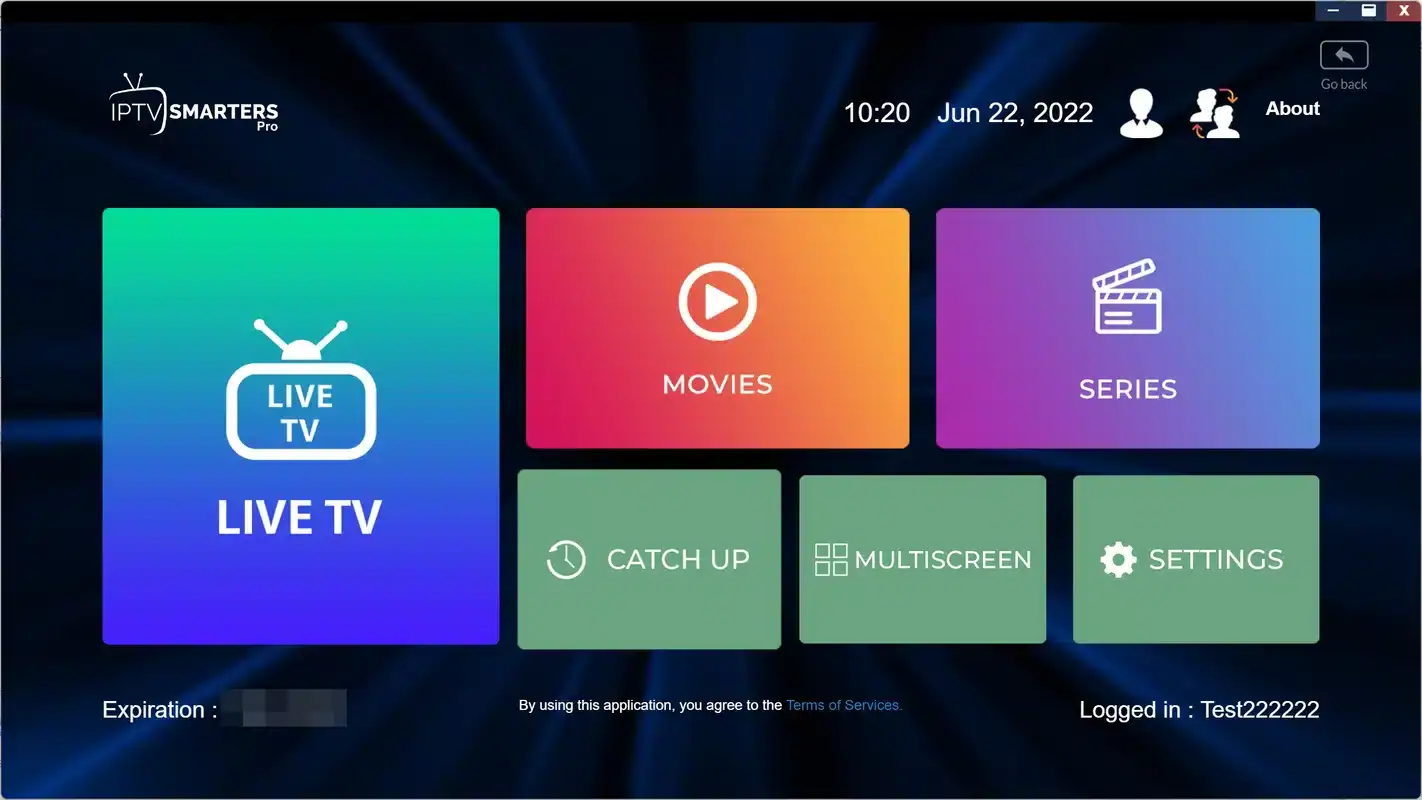
Every player looks a little different, but the logic is shared. You look for an option to add a user, an account or a playlist. You choose the Xtream Codes type or the M3U type. Then you fill in what it asks for.
Three habits for a clean first login
- Copy and paste wherever the device allows it. Typing long values with a remote is where errors creep in.
- Check the last character of each field. A trailing space is invisible and enough to refuse the login.
- Keep the server URL exactly as sent, including any port number after the colon.
If your player asks for a name for the account, any name works. It only helps you recognise the entry later.
The shape of a typical Xtream Codes form. The values always come from your e-mail.
On smart TVs, some players take the playlist on the publisher’s website rather than inside the TV app, using the TV’s MAC address. In that case, you add your details from a phone or computer, then restart the app on the TV. The IBO Player guide shows that route, and the IPTV Smarters Pro guide covers the in-app route.
The first load and the first channel
Once the login is accepted, the player starts reading your catalogue. On the first run, it builds its lists of categories, channels, series and movies. That takes longer than any later launch. It is normal, and closing the app halfway only makes it start again.
When the categories appear, test in this order: a live channel, then a series episode, then a movie. Let the live channel play for several minutes. A picture that starts and holds tells you the login, the player and the connection all work. A picture that starts and pauses points to the connection, not to activation.
Speed per screen we ask you to plan for
These figures are per screen and they add up with everything else on your line. If a laptop is on a video call while you test 4K, the line carries both. A first test in the quiet part of the evening gives you the clearest result. If the picture pauses, lower the quality in the player and compare. The 4K quality page goes further on bandwidth for large screens, and the buffering guide handles pauses step by step.
Next, look at the TV guide. With Xtream Codes, most players load it on their own. If it is empty, give it a little time and refresh it from the player menu. If it shows programmes at the wrong hour, the cause is almost always your device’s time zone. The TV guide setup page explains the fix for every Canadian time zone.
IPTV activation on more than one device
You activate once, but you can install everywhere. The same login works on several devices in your home: the living room TV, a stick in the bedroom, a tablet in the kitchen. What you cannot do is play on two of them at the same moment, because each pack includes one simultaneous connection.
What the one login allows
- Entering the same details on every device in your household
- Switching rooms during the evening, one screen at a time
- Keeping a phone or tablet ready as a backup screen
- Changing player on one device without touching the others
What it does not allow
- Two screens playing at the same time on one pack
- Sharing the login with a relative in another home
- Leaving a forgotten device streaming in the background
- Assuming a second order adds screens to the first
A common activation surprise is a second device that refuses to play while the first one works. Before you suspect the login, check that nothing else is playing. A phone in a pocket with the player still open, or a box left on a paused channel, counts as a connection.
If your household really needs several screens at once, ask before you order through the contact page. Support explains the conditions and the price for your case. We do not publish a fixed multi-screen offer, so the answer always comes from a person who has read your request.
Ready to activate tonight
Compare the three packs and four durations, then order when you have time to set up.
When the access e-mail does not arrive
Access goes out within minutes of a confirmed payment. If yours has not arrived, the cause is almost always on the mail side, not the order side. Work through the cases below in order.
Open the spam, junk and promotions folders. Automated messages with links often land there.
Then: mark it as not spam so future messages arrive normallySearch your whole mailbox for the word Northline. Some mail apps file messages in tabs or folders you rarely open.
Then: check the address you typed at checkoutDo not order again. Write to support with the correct address and the time of your order.
Then: we correct it and resend the accessThe payment may not have gone through. Check your card statement or PayPal account before anything else.
Then: tell support what you see, with no card detailsWhen you write to us, give the e-mail address you used at checkout, the time of the order and the payment method. Never send your full card number, and never send a password for your bank or PayPal. We do not need them and we will never ask for them.
You can reach support 7 days a week by e-mail or on WhatsApp at +33 6 44 65 43 13, in English or in French. A short message with the three details above is usually all we need to find your order and send the access again.
When the login fails after activation
A refused login right after activation is rarely a problem with the access itself. It is almost always about how the details reached the player. The message on the screen tells you a lot, so read it before you change anything.
| What the player says | Most likely cause | First fix |
|---|---|---|
| Invalid username or password | One character wrong, or a space at the end | Paste the fields again from the e-mail |
| Cannot reach the server | Server URL incomplete, or port missing | Copy the full server URL, including the part after the colon |
| Login accepted, but no channels | The first load has not finished | Wait, then refresh the playlist from the menu |
| Account expired | The period has ended, or details from an old order were used | Check the date of your latest access e-mail |
| Works on one device, not on another | A second screen is already playing | Stop the other device, then try again |
| The app asks for activation or a licence | The player’s own publisher licence, not our access | Check the current price on the app’s official website |
The last row trips up many people. Some players use the word “activation” for their own licence. That has nothing to do with your Northline IPTV access. Your access is active as soon as we send it. A player’s licence is a separate arrangement with its publisher. The can’t connect guide goes deeper into every login message.
Deep dive: why a copied login can still fail
Some mail apps turn parts of a message into links or add hidden formatting when you copy. A username can pick up a space, or a server URL can lose its final characters when it wraps onto a second line. If a pasted value fails, paste it into a plain note on your phone first, check that it matches the e-mail, then copy it from the note into the player. Delete the note afterwards so your login does not linger in a shared place.
Switching from another service during activation
Many people activate with us while another subscription is still running somewhere in the home. That is easy to manage, as long as the two logins stay separate. Nothing transfers from another provider to us, and nothing of ours touches theirs.
You can usually keep the player you already know. Most players hold several accounts or playlists side by side. Add your Northline IPTV login as a new entry, give it a clear name, and leave the old entry in place until you are happy with the new one. Once everything plays as you expect, remove the old entry so nobody in the house opens it by mistake on a busy evening.
- Add our login as a new account rather than editing the old one.
- Name the new entry so it is obvious, for example with the room name.
- Test live channels, series and movies on the new entry before you remove anything.
- Rebuild your favourites on the new entry; favourites do not carry across logins.
- Delete the old entry from every device once you no longer need it.
If the player you used before is not on our list, try it with our login anyway if it accepts Xtream Codes or M3U, but know that our guides and support advice are written for the players we name. If it misbehaves, switching to a supported player from your device’s official app store is the quickest route.
What this means for you: keep the two worlds apart until you have finished testing. A clean, separate account makes it obvious which login is playing when you write to us.
What we check when you report an activation problem
When an activation message reaches support, we follow the same order every time. Knowing it helps you send the right details in your first message.
- Check 1
The order
We find your order from the e-mail address and the time you give us, and confirm the pack and duration.
- Check 2
The access
We confirm when the access was sent and to which address, and resend it if needed.
- Check 3
The status
We look at whether your login is active and whether it is being used from more than one place at once.
- Check 4
The home side
If everything is normal on our side, we help you with the player, the device and the connection.
We tell you plainly what we found at each check. If the problem is ours, we say so and fix it. If it sits in the player or the home, we say that too, and we stay with you until the first channel plays. We do not close a conversation just because the fault is not on our side.
One more point on timing: support answers 7 days a week, in English and in French, by e-mail or WhatsApp. Messages are read in the order they arrive, so one complete message moves faster than several short ones sent in a row.
The fastest messages contain four things: the e-mail used at checkout, the device, the player and a photo of the screen showing the exact message. With those, we can usually reply with a fix rather than a list of questions.
Your first evening after activation
Activation ends with a channel on screen, but your first evening is the real test. A calm half hour of normal viewing tells you more than any speed test. Here is what we suggest you look at.
Picture
Let a live channel play for a while. If it pauses, drop to Full HD or HD and compare.
Guide
Compare the guide with your clock. A shift of an hour points to the device time zone.
Favourites
Mark the channels you return to. Your lists load faster and scroll less.
Other devices
Add the same login to the other screens now, while the e-mail is open.
Connection
If the TV is far from the router, try a cable or the 5 GHz band.
Support contacts
Save our e-mail and WhatsApp number in your phone for later.
If something feels wrong on that first evening, tell us that evening. A report written while you are looking at the screen is far more useful than a memory a week later. Note the channel, the time, the device and what you saw. That is enough for us to tell you whether the fix is on your side or ours.
What this means for you: the first evening is part of activation. Treat it as a short check, not as a test you have to pass alone.
A new IPTV activation when your period ends
Because nothing renews automatically, every new period is a new order. That has two consequences for activation, and both are simple once you know them.
First, a new order may come with new login details. Read the new access e-mail carefully. If the details differ from the old ones, replace them in each of your players. Leaving the old account in the app and adding a new one beside it is the most common cause of “it worked yesterday” messages.
Second, you can change pack or duration freely at that point. Moving from Premium to VIP Premium, or from a short duration to a long one, is just a different choice on a new order. There is no upgrade fee to calculate and no contract to adjust.
- Place the new order shortly before the old period ends if you want no gap.
- Open the new access e-mail and compare it with the old one.
- Update every device that holds the old login, one by one.
- Delete the old account from each player once the new one plays.
- Keep only the newest access e-mail where you can find it.
If you are unsure whether the details changed, ask support. We would rather answer a quick question than see you spend an evening with an old login.
Activation words, explained
A few terms come up again and again during activation. Here is what each one means at Northline IPTV, in plain language.
- Access e-mail
- The message we send after payment, with your login in Xtream Codes format, M3U format or both.
- Period
- The length of access you bought: 1, 3, 6 or 12 months, counted from the moment the access is sent.
- Xtream Codes
- A login made of a server URL, a username and a password, typed into three fields of a player.
- M3U link
- A single playlist address that carries your login inside it. Treat it like a password.
- Player
- The app that reads your login and shows the content. It comes from an independent publisher.
- Publisher licence
- A fee some players charge for their own app. It is separate from your access with us.
- Simultaneous connection
- One screen playing at a time. Each pack includes one.
- First load
- The time a player needs to read your catalogue the first time. Later launches are quicker.
Related pages
Activation touches every part of the site. These pages pick up where this one stops.
A question before you order
Ask about devices, players or extra screens. We answer 7 days a week in English and French.
FAQ
How long does IPTV activation take?
Your access is e-mailed within minutes of a confirmed payment. Entering it in a player usually takes a few minutes more, plus the time the player needs for its first load.
When does my period start?
It starts when your access is sent. It does not wait until you first open the player, so order when you can set up the same day.
I paid but received nothing. What should I do?
Check spam, junk and promotions folders, then search for Northline. If there is still nothing, write to support with the e-mail used at checkout and the time of your order. Do not order a second time.
Can I activate on more than one device?
Yes. Enter the same details on several devices in your home and use them one at a time. For more screens at once, ask support about the conditions and the price.
Which format should I use, Xtream Codes or M3U?
Use Xtream Codes when your player offers it. Use the M3U link when the player accepts only a playlist address.
My player asks for activation. Is that your service?
No. That is the player’s own licence from its publisher. Your access with us is active as soon as it is sent. Check the current price of the licence on the app’s official website.
Will I be charged again when my period ends?
No. There is no automatic renewal and no contract. To continue, you place a new order.
Do I need to activate again after a new order?
Read the new access e-mail. If the details changed, replace the old login in each player. If they did not, there is nothing to change.
Can I change pack when I order again?
Yes. Each order is independent, so you can choose any pack and any duration next time.
What should I send support if the login fails?
Your device, the player name and the exact message on screen. Never send your password in a public place or your card details anywhere.